Googlebook pre-orders began upon its announcement in September, but sequential sales officially launched from the U.S. on October 4, 2026. As a user based in Japan, I needed to use a parcel forwarding service from the U.S., and the device actually arrived on October 13.
The models I purchased were the "Lenovo Googlebook 15" and the "Dell XPS Googlebook." Lenovo arrived first, and since then, I have been conducting almost all of my work exclusively on the Googlebook.
While HelenTech has already published first impressions and a hands-on review of the Googlebook, here I would like to share my refreshed impressions as a Chromebook user after using the Googlebook for about two weeks.
Excellent Hardware
I have been using both the Lenovo Googlebook 15 and Dell XPS Googlebook interchangeably, and excellent hardware is a common theme across both models.
For instance, the Lenovo model features a 15.3-inch high-resolution display while keeping its weight down to roughly 1.29 kg, making it versatile enough for both desk placement and portable use. It also supports face unlock in addition to fingerprint authentication, and boasts good expandability with USB-A and HDMI ports alongside Thunderbolt 4-compatible USB-C ports.
The other model, the Dell XPS Googlebook, is a compact and lightweight device featuring a 13.4-inch display and weighing around 1 kg. Despite its size, it packs a high-resolution screen, Snapdragon X Elite performance, and impressive battery life, offering a well-balanced option for users on the move.
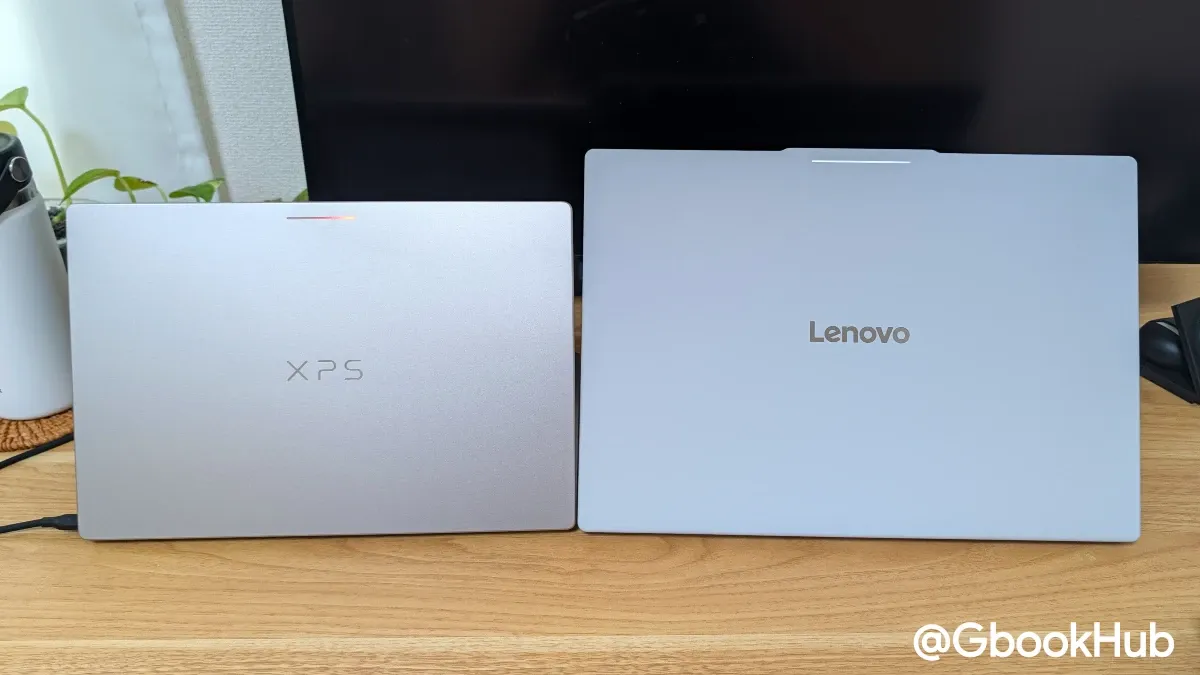
Both models feature specs that look luxurious even when compared to Chromebook Plus models, and their performance rivals top-tier Chromebooks, making them deserving of the "premium" label. However, compared to Windows PCs or MacBooks, it remains true that their performance sits at around the mid-range level.
In this regard, because Googlebook runs on Android-based Googlebook OS, performance does not feel noticeably lacking, operating relatively smoothly. Yet, Googlebook OS cannot be said to be fully optimized yet, leaving the impression that software is holding back the completion of the hardware.
Not ChromeOS Integration, but an Android Extension
Google calls Googlebook OS a hybrid design of ChromeOS and Android, and while that may technically be true, from a user perspective, ChromeOS elements are invisible—it feels like an extension of Android.
Keyboard and Touchpad
For example, keyboard shortcuts have changed significantly from Chromebooks, requiring key operations to be performed in combination with the "Action key (G)." While this is understandable given the Android foundation, the drastic shift in operation feels awkward until you get used to it.
Additionally, shortcuts outside of combinations with the Action key cannot currently be customized freely. Furthermore, except for swapping a few select keys, key customization—including the Quick Insert key—is not supported at this time.
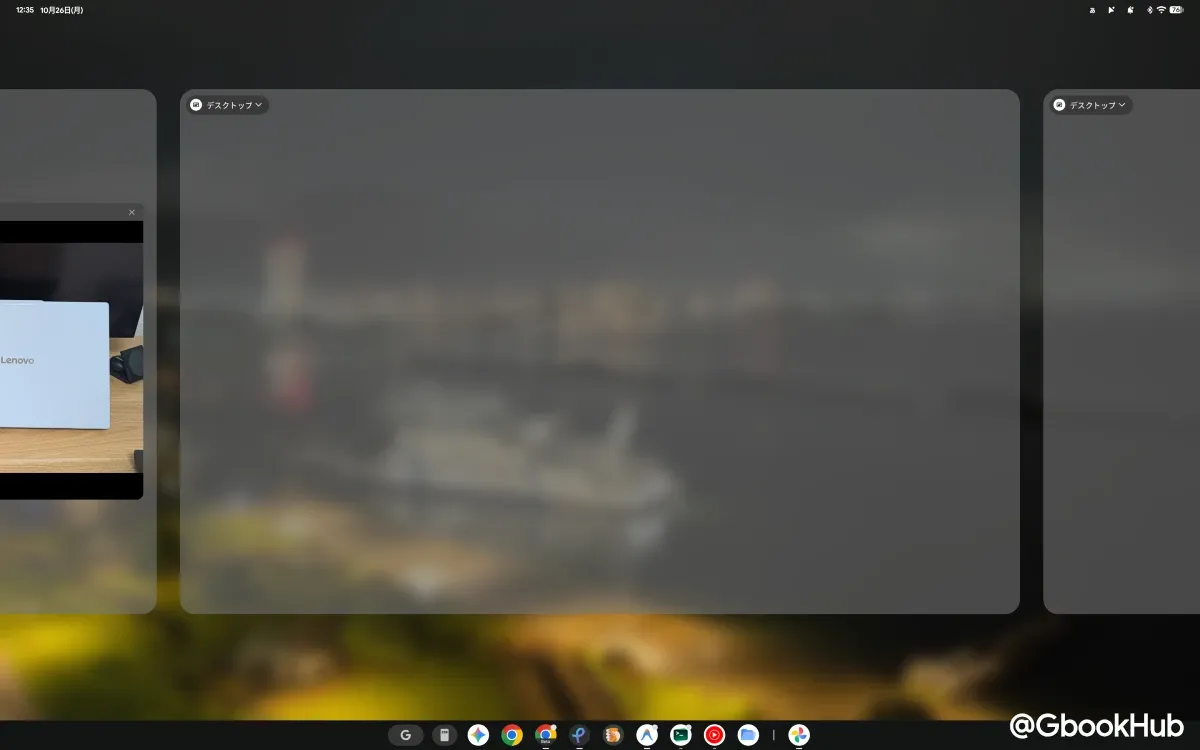
Regarding the touchpad, three-finger swipes currently support showing notifications, opening Overview, and triggering the back action, but gestures like switching virtual desks or four-finger swipes present on Chromebooks are missing. Therefore, switching virtual desks requires using keyboard shortcuts or invoking Overview to select one manually.
Virtual Desks
While virtual desks are available on Googlebook, not only is switching between them cumbersome, but you also cannot add or delete new virtual desks via keyboard shortcuts, rename them, or merge virtual desks.
On the other hand, unlike ChromeOS, when an external monitor is connected, virtual desks are created and displayed independently per screen. For example, switching virtual desks on the built-in display leaves the external monitor's view unchanged. While Chromebooks switched all screens simultaneously, Googlebook's ability to maintain separate views per display is a benefit.
As a result of this design, disconnecting an external monitor adds the external monitor's virtual desks to the main device's desk setup. While this in itself is fine, the lack of a preview to see how many virtual desks exist or which desk position you are currently viewing is inconvenient.
Chrome Browser
The included Chrome browser supports Chrome extensions and vertical tabs similarly to the desktop version, but differs in the following ways:
-
Split-screen view for tabs is not supported
-
Downloading files or images via the right-click menu does not allow specifying a download destination
-
Developer tools open in a new window instead of a side panel
-
Tab group operation (auto-saving and syncing work)
-
Restoration only applies to the last active window
-
Clicking "All bookmarks" opens them in a tab
-
Managing bookmarks does not support drag-and-drop movement
While there are other minor differences, it feels as though the Android version of Chrome can do what it does, but desktop-convenient features are missing—giving the impression of "Android Chrome with extension support" rather than full desktop Chrome.
Additionally, in Japanese environments, Gemini in Chrome—which is available on Windows/macOS and Chromebook Plus—is currently unavailable. However, since the device has not been announced in Japan yet, this may improve in the future.
Note that support for Chrome multiple profile switching is being considered for addition in future updates.
Linux Terminal
With Googlebook moving to an Android base, native Android apps as well as the Linux terminal have become easier to utilize, which is an advantage.
However, at present, even if you install Linux applications, they can only be used within the terminal; GUI Linux apps cannot be launched from the app launcher or displayed as independent windows.
Fortunately, Google has revealed plans to improve this area, though the release timing remains unknown.
Additionally, the Android version of Antigravity pre-installed on Googlebook operates very smoothly and conveniently, but using it requires granting permission in the Linux terminal each time. Closing the terminal stops Antigravity from running, making usability somewhat inconvenient.
External Displays and Display Resolution
Another point worth adding is that adjusting screen resolution and using external monitors feels unwieldy.
On Googlebook, display sizing can be changed under Settings > Devices & accessories > Display > Display size and text. On Windows, macOS, or ChromeOS, screen resolutions or scaling ratios are displayed, making it easy to know whether you are using native resolution, FHD+ equivalent, or something in between. On Googlebook, however, this information is omitted, so you cannot immediately tell what resolution you are operating at.
Furthermore, beyond resolution not being displayed, display size is shown merely in 5 discrete steps, making it unclear whether you are truly utilizing high resolution.
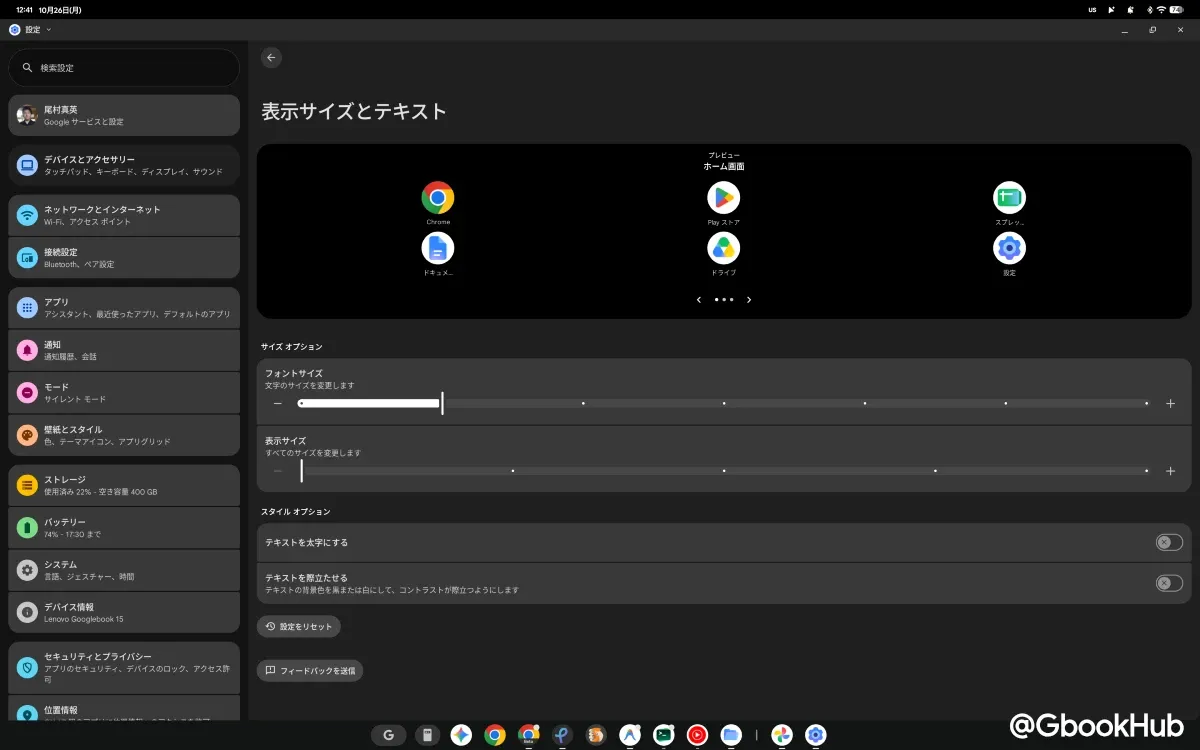
For example, on the Lenovo Googlebook 15, matching ChromeOS's native equivalent should yield 2,880×1,800, but Googlebook cannot set this resolution, nor can you tell what the current resolution is.
Checking with web tools revealed that the widest display setting on the Lenovo Googlebook 15 corresponds to roughly 2,259×1,412, while the Dell XPS Googlebook corresponds to 2,008×1,255. In short, neither is running at native resolution, but rather capped below it.
Depending on the situation, users may want to view content on a wider canvas, but the degree of freedom here is considerably lower compared to other operating systems.
For smartphones or tablets, such granular details might not matter, but because Googlebook is a laptop PC, such adjustments are necessary from a productivity standpoint.
Smartphone Integration is Surprisingly Convenient
The points above highlight areas where usability has noticeably degraded compared to Chromebooks. While the differences were confusing at first, once accustomed to them—and setting aside some instability—they aren't dealbreakers.
Conversely, one area that has become significantly more convenient with Googlebook is enhanced integration with Android smartphones.
"Cast My Apps," which allows accessing apps on an Android phone linked to the same account, operates apps directly without installing them on the Googlebook. Additionally, receiving notifications from your smartphone makes it harder to miss messages or social media updates.
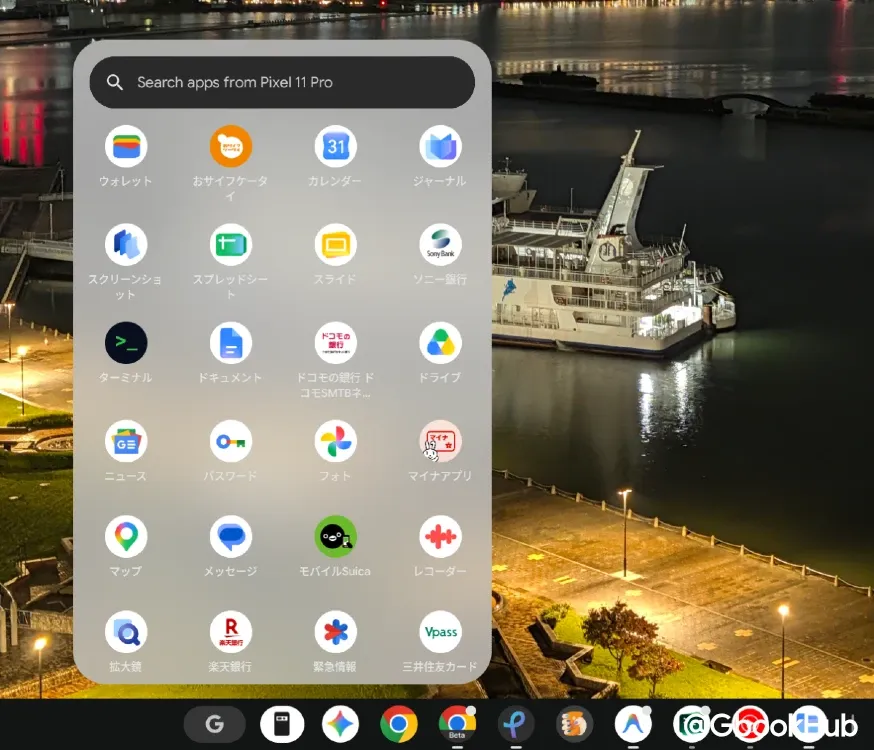
While Chromebooks offered something similar via "Phone Hub," they could not achieve integration this advanced. Above all, stronger connection stability than Chromebooks is a key strength.
Furthermore, this smartphone integration allows switching between multiple devices. For example, if both a Pixel 11 Pro and a Pixel 10 Pro are paired, you can select either from the Cast My Apps screen to use each phone's respective apps.
Another useful feature is "Quick Access," which lets you view files saved on each linked smartphone directly, providing direct access to screenshots, photos, and downloaded files. When writing articles like this, it is convenient not to have to go through Google Drive or Google Photos.
In addition, when network connectivity drops, a tethering notification appears immediately, allowing a smooth switch to network access via smartphone.
Currently, there is an issue where Cast My Apps cannot be used while tethering, but Google has stated that a fix is planned for an upcoming update, though the release date remains unconfirmed.
Individual Updates for Fixes and Feature Additions
On Chromebooks, waiting for scheduled OS updates was necessary, but with Googlebook OS, per-app and per-device updates have become possible. Consequently, when issues arise, fixes and responses can be delivered faster, which is a major benefit.
For instance, a system update was recently rolled out for Intel-based Googlebooks, addressing screen contrast issues and visual bugs in Chrome and other apps.
Moreover, new feature additions can be delivered through Google Play Services or app updates without waiting for major OS updates.
While this is an improvement over Chromebooks, waiting for updates is still necessary at the end of the day.
Currently for Early Adopters, but Promise for Future Evolution
After using Googlebook as my primary device for about two weeks, I have grown accustomed to operational differences, but a noticeable sense of a downgrade from Chromebooks remains. Looking at recent update cycles and feature limitations, Googlebook is clearly in an early release stage, and the sense that the overall platform is still finding its footing cannot be denied.
On the other hand, the initial support structure is evident, with Google disclosing bug fixes and roadmap plans in response to user feedback. Although OS optimization will take time, future continuous updates bring anticipation for feature enhancements and improved convenience.
Overall, completion at this point cannot be called high. To users seeking a stable work environment right out of the box, it is honestly difficult to recommend, but it can be described as a device aimed at early adopters who can enjoy the process of improvement alongside system limitations.