

In this article, I bring you a hands-on review of the Lenovo Googlebook 15, equipped with a 15.3-inch OLED display and an Intel Core Ultra 5 325, which I imported from the US.
This model is one of the first wave of Googlebooks announced in September 2026. It is a clamshell laptop that combines a spacious 15.3-inch screen with a remarkably lightweight build of roughly 1.29 kg.
Hardware polish is high, making it a compelling option even when compared against existing Chromebook Plus devices. However, "Googlebook OS," the Android-based desktop operating system, is still in its infancy in many areas, and using it with the expectations of a Chromebook can be disorienting.
Lenovo Googlebook 15 Specs
The specifications of the Lenovo Googlebook 15 are as follows:
|
Item |
Specification |
|
Form Factor |
Clamshell |
|
OS |
Googlebook OS |
|
Display |
15.3-inch OLED, 2,880×1,800, 120Hz refresh rate, Touch support |
|
CPU |
Intel Core Ultra 5 325 |
|
RAM |
16GB LPDDR5X |
|
Internal Storage |
512GB NVMe Gen 4 SSD |
|
Ports |
2 × USB-C (Thunderbolt 4), 1 × USB-A, 1 × HDMI 2.0, 3.5mm combo audio jack |
|
Front Camera |
5MP / 1080p (with physical privacy shutter) |
|
Networking |
Wi-Fi 7, Bluetooth 5.4 |
|
Battery |
Up to 13 hours, Fast charging supported |
|
Other |
Haptic touchpad, Fingerprint sensor, Face unlock, Backlit keyboard, Dolby Atmos speakers |
|
Dimensions |
341 × 236 × 15.9 mm |
|
Weight |
Approx. 1.29 kg |
The test unit reviewed here is the $1,099 model purchased at Best Buy in the US, equipped with a Core Ultra 5 325, 16GB of RAM, and 512GB of storage.
Design and Appearance
The exterior of the Lenovo Googlebook 15 follows the design language seen across recent generations of Lenovo Chromebook Plus devices. It features a top lid with a slightly raised webcam lip and a wavy, corrugated underside reminiscent of the Pixelbook Go.
The chassis comes in an off-white gray color with a smooth matte texture that conveys a premium feel.
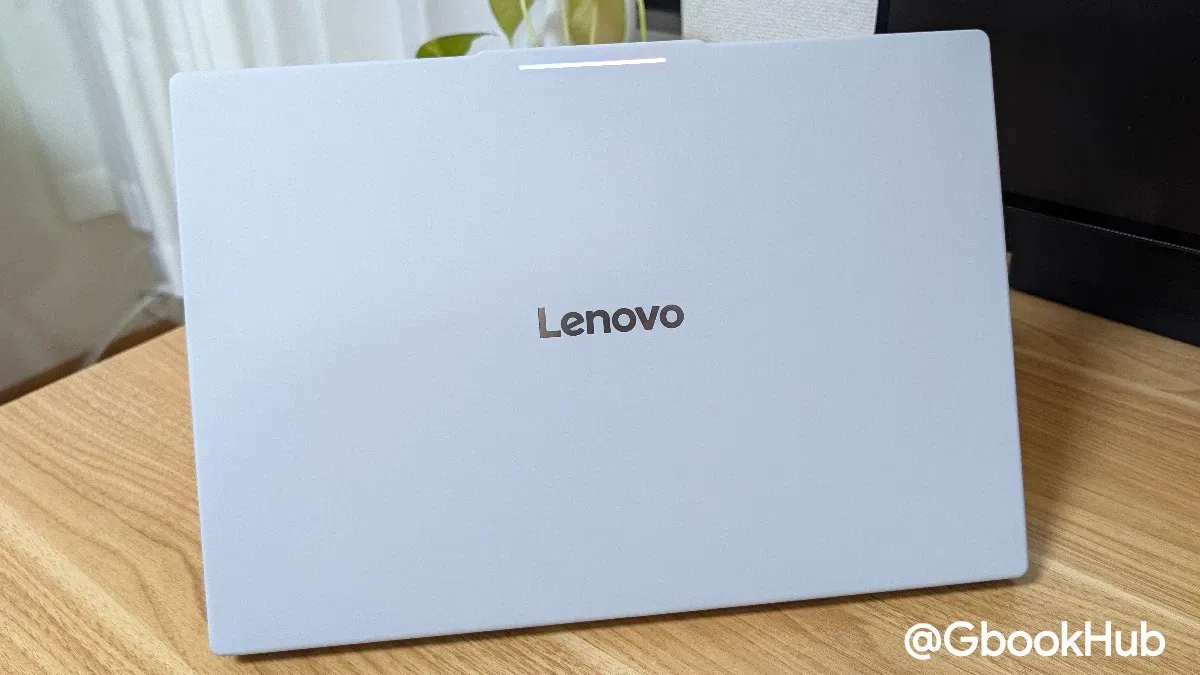
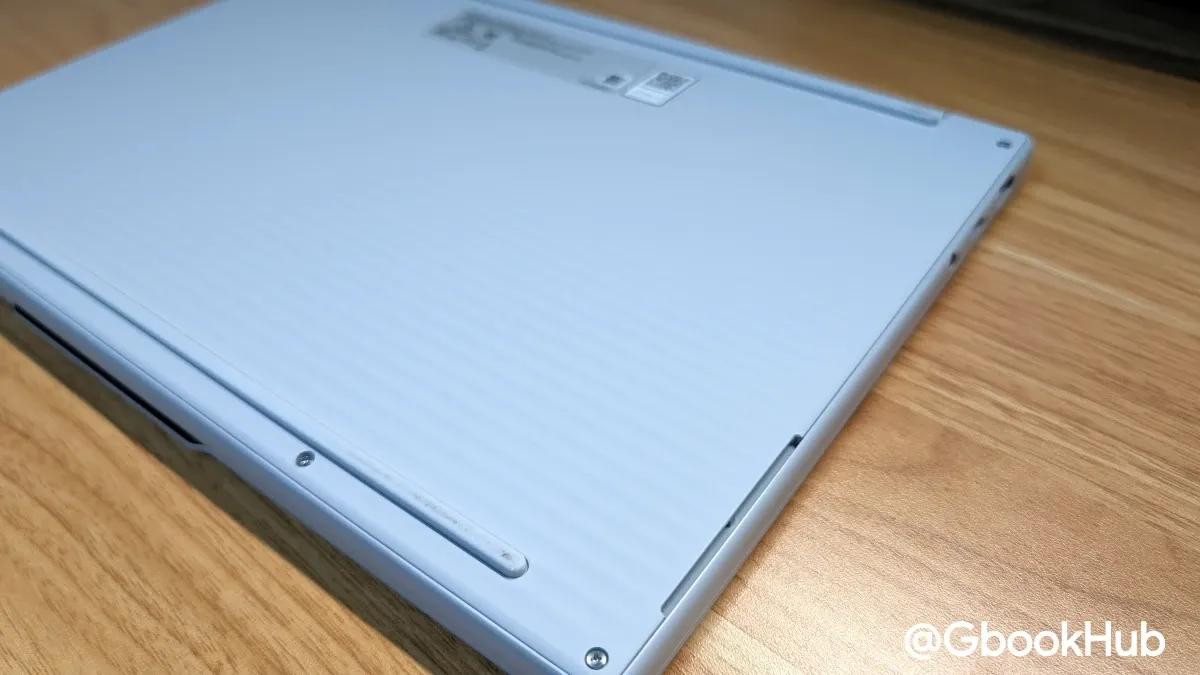
At 15.3 inches, the 1.29 kg weight is a major strength. The chassis does not feel particularly thick, to the point where the 14-inch Lenovo Chromebook Plus Gen 10 actually feels heavier by comparison.
Because the footprint itself is large, it is not compact, but it feels surprisingly light relative to its size. Carrying it in a bag leaves a completely different impression compared to previous Chromebooks. It strikes an excellent balance between providing expansive screen real estate, clear readability, and easy portability.
Ports and Interfaces
Port selection includes two Thunderbolt 4-compatible USB-C ports, one USB-A port, one HDMI port, and a 3.5mm combo audio jack. The power button is located on the side.
Having one USB-C port on each side is very convenient, making cable management and peripheral connections much easier. In addition, the presence of HDMI and USB-A ports allows connecting peripherals without requiring dongles.
In my case, I often use one USB-C port for power or an external display, the USB-A port for a security key like a YubiKey, and the second USB-C port for a Jabra Evolve3 85 receiver. Having even a single USB-A port makes a noticeable difference in daily convenience.
Display
The display uses a 15.3-inch, high-resolution 2,880×1,800 OLED panel supporting a 120Hz refresh rate and touch input.
The high resolution ensures sharp text and expansive workspace, while the 15.3-inch screen size prevents text from becoming overly small even when scaled high.
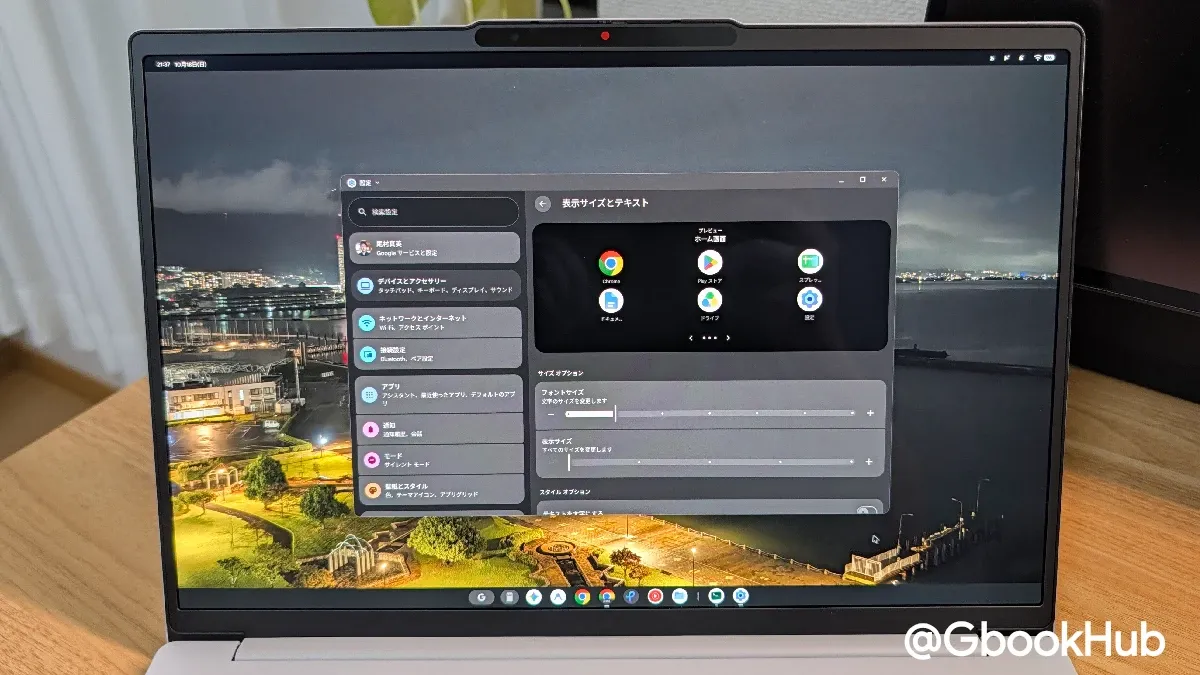
On the other hand, whether due to modest maximum panel brightness or a lack of granular adjustments within the OS, using the device in bright environments causes the screen to stay pegged at maximum brightness when auto-brightness is enabled. While I cannot confirm how much this impacts battery life, it was noticeable.
In addition, the OS currently does not display scaling percentages or resolution numbers when changing display settings, making it difficult to know what resolution is actually being applied. However, this is something that can likely be addressed in future OS updates.
Keyboard and Touchpad
The keyboard conforms to the standard adopted by Chromebook Plus devices released since 2024, featuring both the Quick Insert key and the G Launcher key. However, unlike Chromebooks, the F1, F2, and F3 positions along the top row correspond to the Android navigation icons (◁, ◯, and □), serving as Back, Home, and Overview (Recent Apps) respectively.
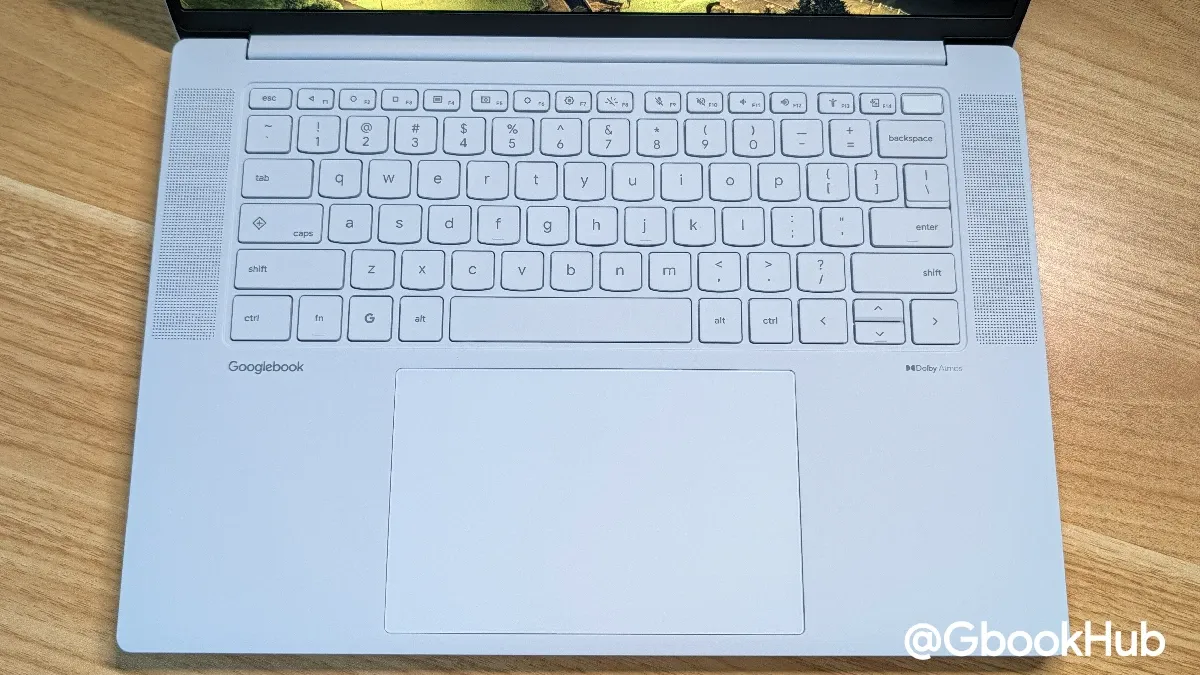
Key travel feels soft yet tactile with a distinct click. The typing sensation resembles the Lenovo Chromebook Plus Gen 10, though slightly lighter, making extended text entry comfortable.
The touchpad is large and supports haptic feedback, providing stable, consistent click input. Overall usability felt very solid.
One limitation regarding the keyboard is that its Android foundation offers limited customization. Keybindings and keyboard shortcuts cannot be modified as extensively as on ChromeOS. The inability to remap the Quick Insert key is particularly disappointing and represents an area where future updates are needed.
A fingerprint sensor sits in the upper-right corner, and immediately to its left is a dedicated key for launching Rambler voice input.
Rambler is a new voice input feature introduced with the Google Pixel 11 series. Even if you speak with filler words like "um" or "uh," or without organizing your thoughts, AI processes and structures the input into coherent text. It works well for jotting down quick notes or drafting ideas to feed into Gemini.
Speakers, Webcam, and Biometrics
Dedicated speakers are located on the left and right sides of the chassis. Audio quality is reasonably good, handling background music and video playback without issue.
The webcam is a 5MP (1080p) sensor equipped with a physical privacy shutter. It delivers relatively clear video for an integrated laptop camera during Google Meet calls and other virtual meetings.
The camera also supports facial recognition for unlocking the screen. However, if the physical privacy shutter is closed or camera access is toggled off in system settings, face unlock will not function, requiring permissions to remain active.
Performance and Real-World Impressions
All five launch models of the initial Googlebook lineup feature 16GB of RAM or more paired with high-performance processors. As a result, running multitasking workloads while participating in Google Meet calls proceeds without hiccups.
Benchmarks
Below are the benchmark results measured on the Lenovo Googlebook 15 test unit:
|
Benchmark |
Score |
|
Geekbench Single |
2,193 |
|
Geekbench Multi |
8,263 |
|
Geekbench GPU (Vulkan) |
20,362 |
|
Geekbench AI (Single Precision) |
1,210 |
|
Geekbench AI (Half Precision) |
1,184 |
|
Geekbench AI (Quantized Precision) |
1,905 |
|
Octane 2.0 Plus (Single) |
99,137 |
|
Octane 2.0 Plus (Multi) |
468,106 |
|
JetStream |
246 |
|
Speedometer |
27 |
|
MotionMark |
4166.56 / @60fps |
|
WebXPRT |
95 |
|
PCMark |
21,012 |
In terms of benchmark numbers, these scores exceed those of top-tier Chromebook Plus processors such as the Intel Core i5-1240P, Core i7-1265U, Core Ultra 5 115U, and MediaTek Kompanio Ultra 910.
In actual day-to-day use, performance felt on par with top-tier Chromebook Plus devices, handling browser-based workflows smoothly and reliably.
Battery Life
In battery testing focused on browser-based work, the device consumed roughly 15% battery per hour. Consequently, users can expect around 6 hours of real-world battery life under typical workloads.
While this is about half the advertised 13 hours, it aligns with what we typically see from Intel-powered Chromebook Plus models, making it an expected outcome.
Considering the screen size, lightweight design, and performance, nearly 6 hours of battery life is respectable. Additionally, Googlebook includes Android's default 80% charge limit feature, helping reduce battery degradation for users who keep their laptop plugged in for extended periods.
External Display Connection and Workflow Styles
Initially, I connected the laptop to a 4K external monitor in clamshell mode. While display output itself is more stable than on ChromeOS, window management functions like split-screen multitasking remain unpolished. Occasionally, glitches occur when opening or closing the lid or connecting and disconnecting cables, resulting in scrambled UI elements or displaced virtual desktops and windows.
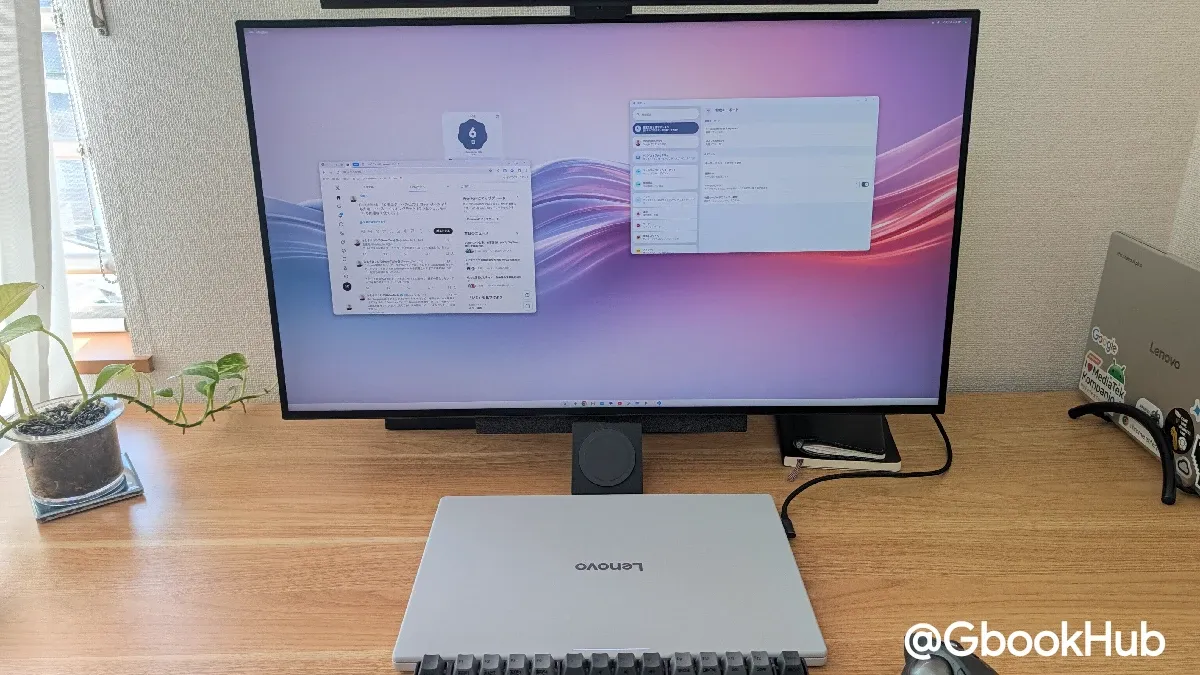
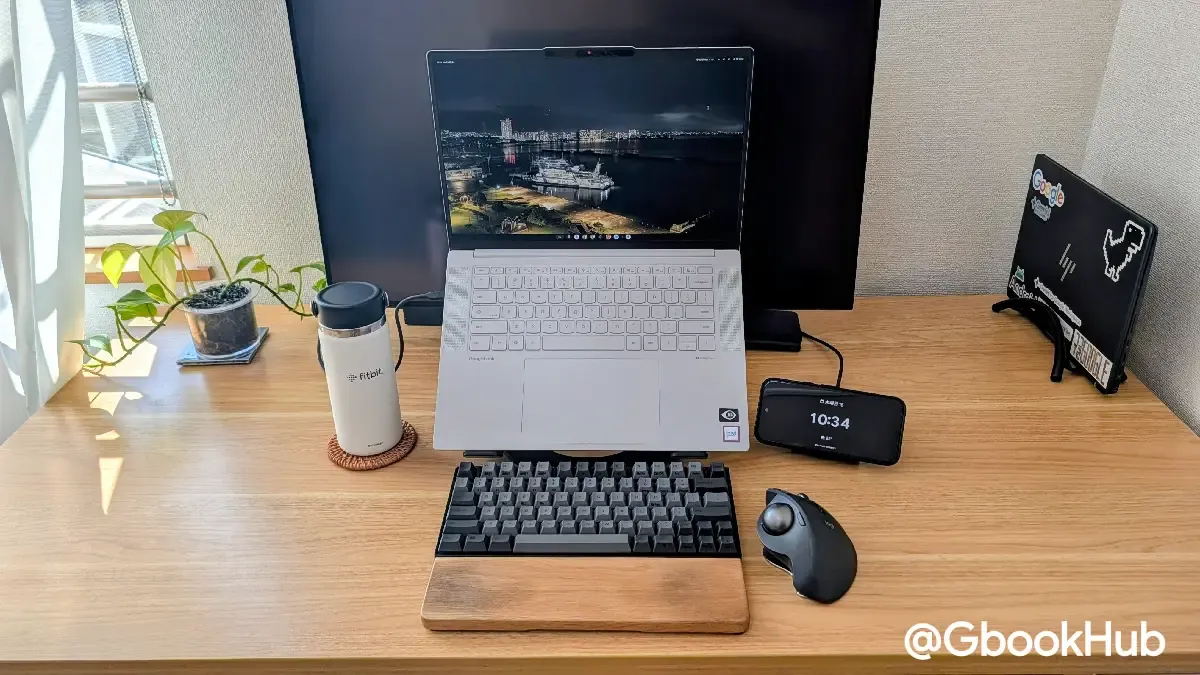
As a result, external display usability (particularly with high-resolution monitors) is somewhat awkward at present. For now, using the built-in display alone or pairing it with a 1080p (FHD) or 1440p (WQHD) external monitor offers a more seamless experience.
Because the Lenovo Googlebook 15 provides a large, high-resolution screen, placing it on a laptop stand paired with an external keyboard and mouse works very well for extended work sessions.
Googlebook OS and Chrome Browser Usability
Googlebook OS is a new Android-based desktop operating system, and as mentioned in my first impressions, it remains very much in development.
In particular, the Chrome browser feels like an expanded mobile version of Android Chrome. While it supports Chrome extensions and vertical tab layouts, several essential features present in desktop Chrome are missing:
-
No tab group saving and syncing
-
No split-screen tab viewing
-
No Gemini in Chrome (in Japanese environments)
-
No multi-profile user switching (announced as coming in a future update)
While these features will hopefully arrive in subsequent updates, if Google aims to unify ChromeOS and Android, capabilities already established on Chromebooks should ideally have been supported from day one.
Since receiving the device, I have been using the Lenovo Googlebook 15 as my primary daily driver. Approaching it with Chromebook expectations reveals stark differences. Treating it instead as "Android with Chrome extension support" makes the transition much smoother. While rough edges remain, it can handle most daily tasks without issue.
Magic Pointer and Create My Widget
While Googlebook includes several unique features such as smartphone integration and Magic Pointer, the AI features currently feel unrefined.
For example, shaking the mouse cursor triggers "Magic Pointer," which allows users to ask Gemini about content under the pointer. However, unlike the AI features on Chromebook Plus, it does not open an inline pop-up window; instead, it launches the full Gemini app. As a result, the experience is not fundamentally different from opening the Gemini app manually and sharing your screen. That said, being able to query Gemini directly without manually switching apps is a practical convenience.
Meanwhile, "Create My Widget," which generates widgets from natural language prompts, looks promising on paper, but I was unable to generate widgets properly in my environment and could not test it thoroughly.
Smartphone Integration Features
On the other hand, smartphone integration works very well. For instance, "Continue On" lets you pick up where you left off on your phone, reopening active Chrome tabs or Google Workspace apps like Google Docs directly on Googlebook.
For unsupported apps or apps you prefer not to install locally, "Cast My Apps" lets you stream and interact with apps running on your smartphone directly from Googlebook. This is especially handy for messaging apps like LINE.
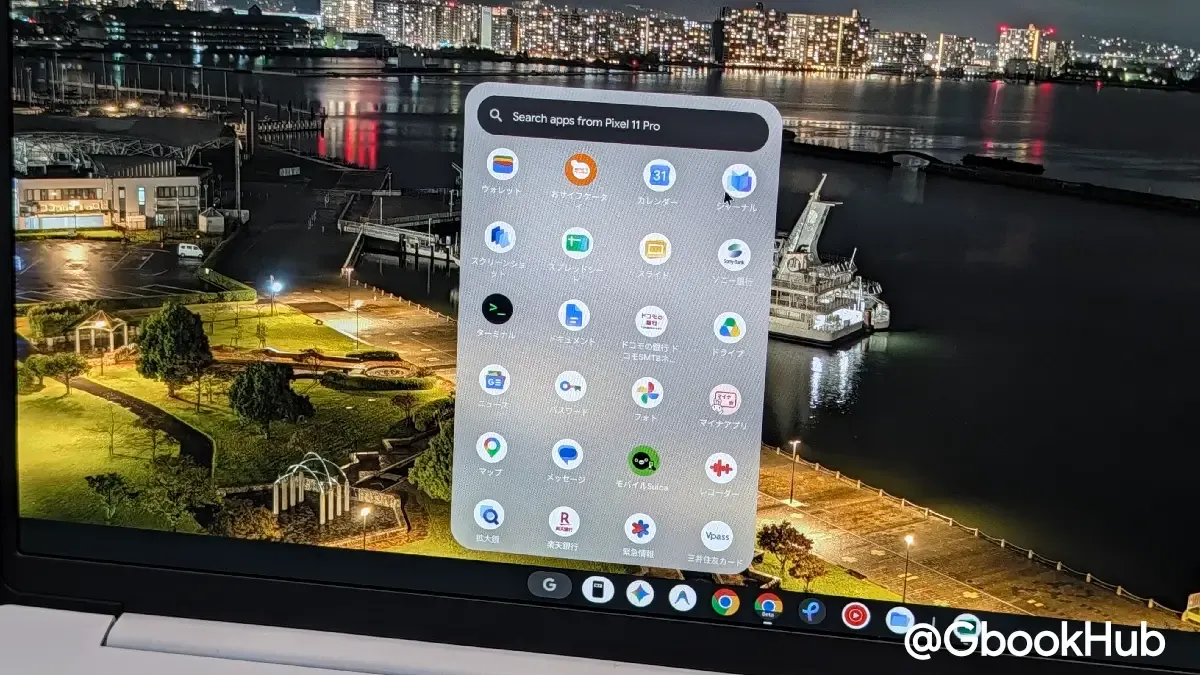
Receiving phone notifications on Googlebook also means most quick interactions can be completed without picking up your phone. However, granular notification filters (such as muting specific apps) are not yet supported, which will hopefully be addressed in future updates.
Additionally, the file access feature allows browsing files, screenshots, and PDFs stored on your phone directly from the Googlebook file manager, making file transfers seamless without relying on Google Drive or Quick Share.
When a phone logged into the same Google Account and added to the cross-device services group is nearby, it appears automatically in file access and app casting, allowing smooth device switching.
While AI features still have a way to go, integration with Android smartphones is distinctly superior to Chromebooks and much more practical for daily use.
Summary
The Lenovo Googlebook 15 is a remarkably well-built laptop, combining a gorgeous 15.3-inch high-resolution OLED display with a lightweight 1.29 kg chassis. Even compared against high-end Chromebook Plus devices, it stands out as an easy hardware recommendation.
Its lightweight large-screen design is its biggest asset. The built-in display provides ample workspace, and real-world battery life of roughly 5 to 6 hours makes it versatile for both desktop and portable use.
At the same time, the operating system, Chrome browser implementation, and AI features remain works in progress. Compared to Chromebooks, several desktop conveniences are still absent, requiring users to approach the device as a large-screen Android machine that supports Chrome extensions.
Because Googlebook OS is still evolving, the platform currently carries some rough edges and functional limitations for everyday users looking for a fully polished, turnkey computing experience. For now, it is best suited for early adopters who want to be part of the platform's journey and experience its development firsthand as software updates continue to roll out.