The Glowbar LED light bar on the lid of your Googlebook is an indicator that shows device power states, battery level and charging status, Gemini conversation status, and more with light patterns.
Even when the lid is closed or the device is in sleep mode, you can check the device status at a glance. You can also temporarily customize the lighting patterns using a hidden app.
This article explains how to set up the Glowbar on your Googlebook and how to use the hidden app "Glowbar Disco" to customize lighting patterns.
Glowbar light patterns
Glowbar displays different light patterns depending on power states, battery levels, charging status, and Gemini activation status.
Power status
Light patterns during device startup, resume, and sleep are as follows:
|
Light pattern |
Device state |
|---|---|
|
Solid white, color shift, solid white |
Power-on processing, or resuming from sleep (when connected to power) |
|
4-color gradient (blue, green, yellow, red), fading out |
Power-off, or sleep state (when not connected to power) |
|
Bright solid white |
Powered-on idle state (when connected to power) |
|
Dim solid white |
Powered-on idle state (when not connected to power) |
|
Off |
Powered off, paused, disabled, or low battery |
Battery level and charging status
Light patterns corresponding to battery charging status and level are as follows:
|
Light pattern |
Device state |
|---|---|
|
Blinking red (repeats 1-second on / 1-second off for 8 cycles / 15 seconds, then stops) |
Battery disconnected, damaged, or charging error |
|
Temporarily solid red, gradually turns off, then partially solid red |
Extremely low battery state (Will not boot at 0%; requires several minutes of charging) |
|
Entire bar solid green |
Battery level 95% or higher |
|
75% of bar green, faintly pulsing |
Battery level 60%–94% |
|
50% of bar yellow, faintly pulsing |
Battery level 20%–59% |
|
25% of bar red, faintly pulsing |
Battery level 0%–19% |
Gemini activation status
Light patterns when using Gemini voice conversation feature are as follows:
|
Light pattern |
Device state |
|---|---|
|
Continuous blue and purple gradient animation |
Voice conversation with Gemini is in progress |
Examples of animation color patterns can be checked on Googlebook Help.
Glowbar light settings
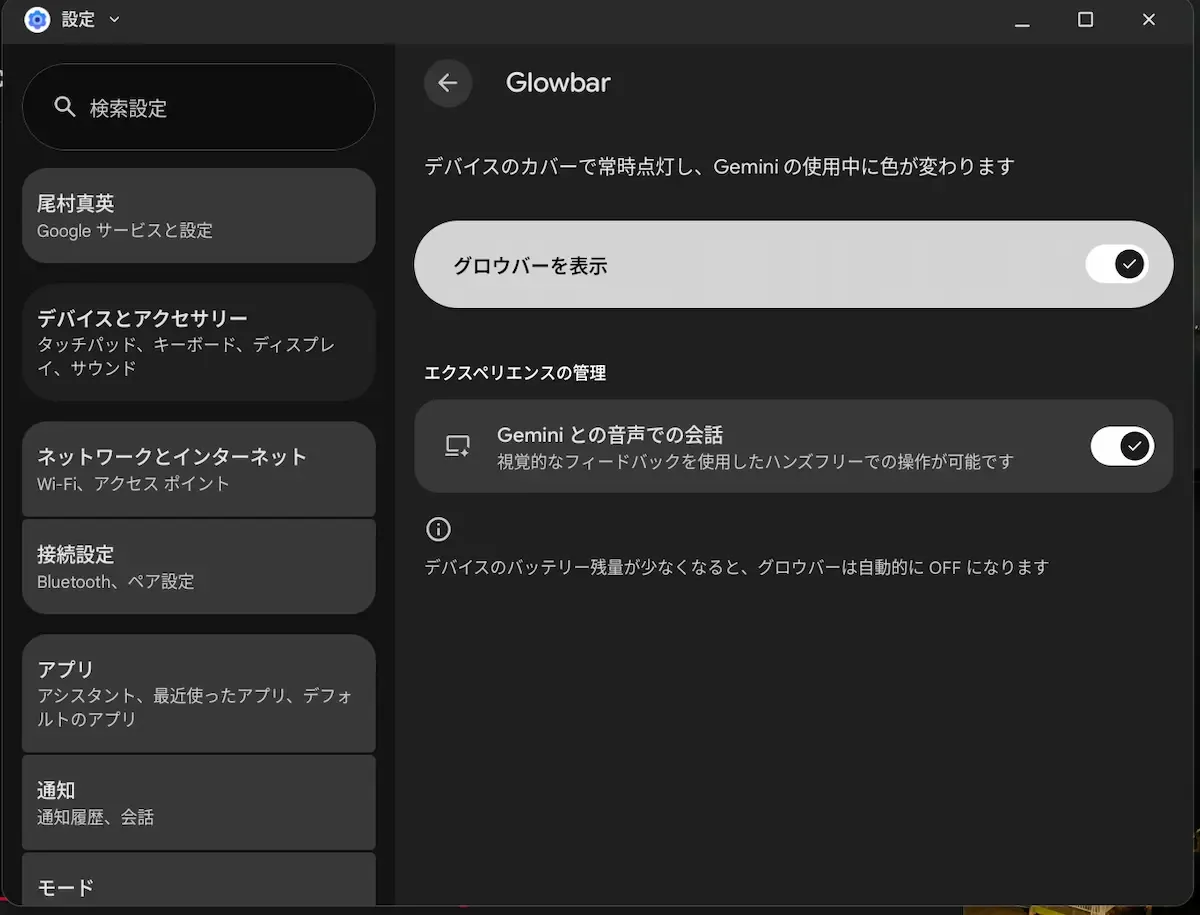
Always-on lighting for Glowbar or lighting during Gemini usage can be toggled on or off individually from the Settings app.
-
Open device [Settings]
-
Go to [Devices & accessories] > [Glowbar]
-
Toggle "Show Glowbar" on or off: Switches always-on lighting. Even if turned off, lighting for essential system statuses such as power on/off, charging status, and waking from sleep remains active.
-
Toggle "Voice conversation with Gemini" on or off: Switches lighting during voice conversation with Gemini. Even if turned off, the Gemini voice conversation feature itself remains available.
Note that Glowbar automatically turns off when the device battery is low.
How to open the hidden app "Glowbar Disco" and its features
Googlebook comes with a system app called "Glowbar Disco" that lets you change Glowbar light colors, animations, and illuminate to matching playback audio.
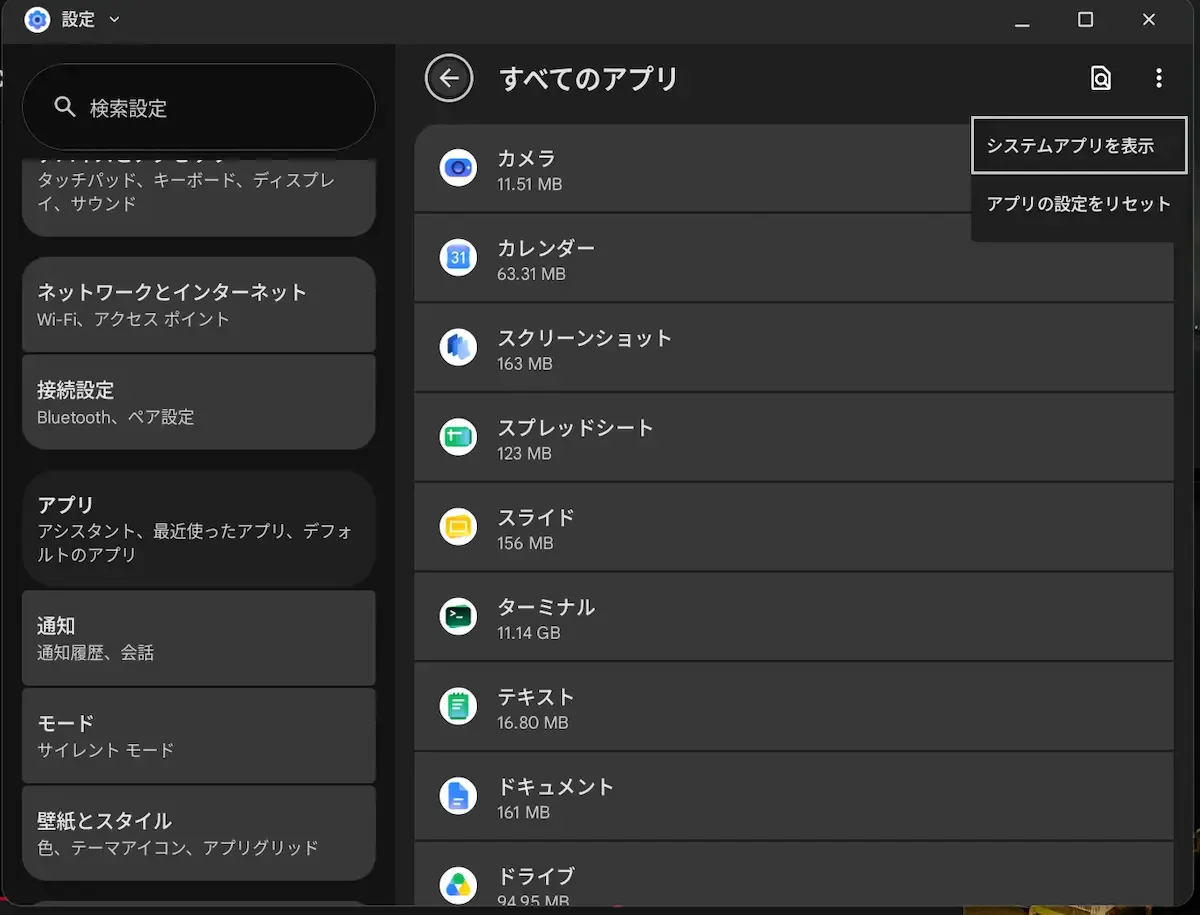
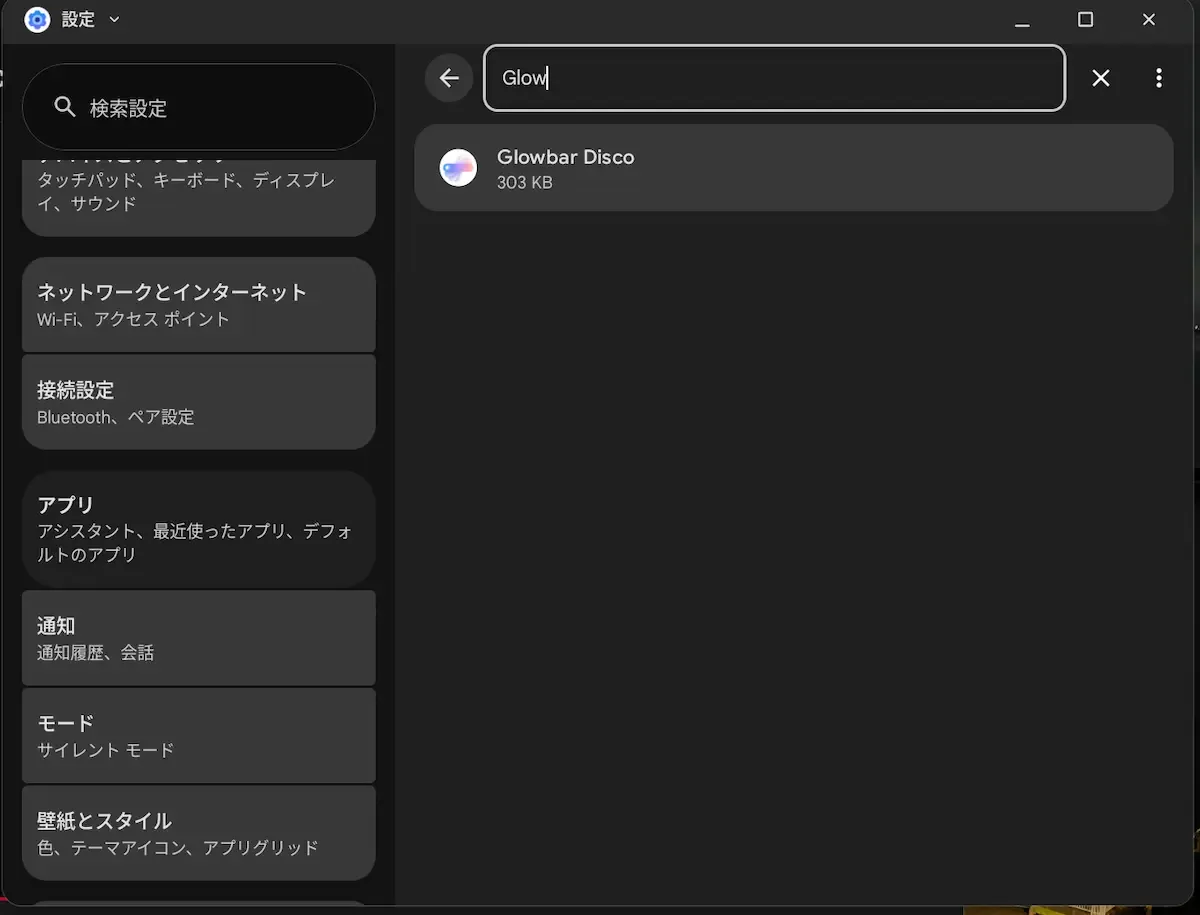
Since it doesn't appear in the standard launcher or taskbar, search for system apps via the Settings app to launch it.
How to launch Glowbar Disco
-
Select Googlebook [Settings] > [Apps] > [See all ◯ apps]
-
Select the menu icon [ ⋮ ] in the top right of the "All apps" screen, and select [Show system apps]
-
Type “Glowbar disco” into the search bar at the top, and open the app displayed in the search results
-
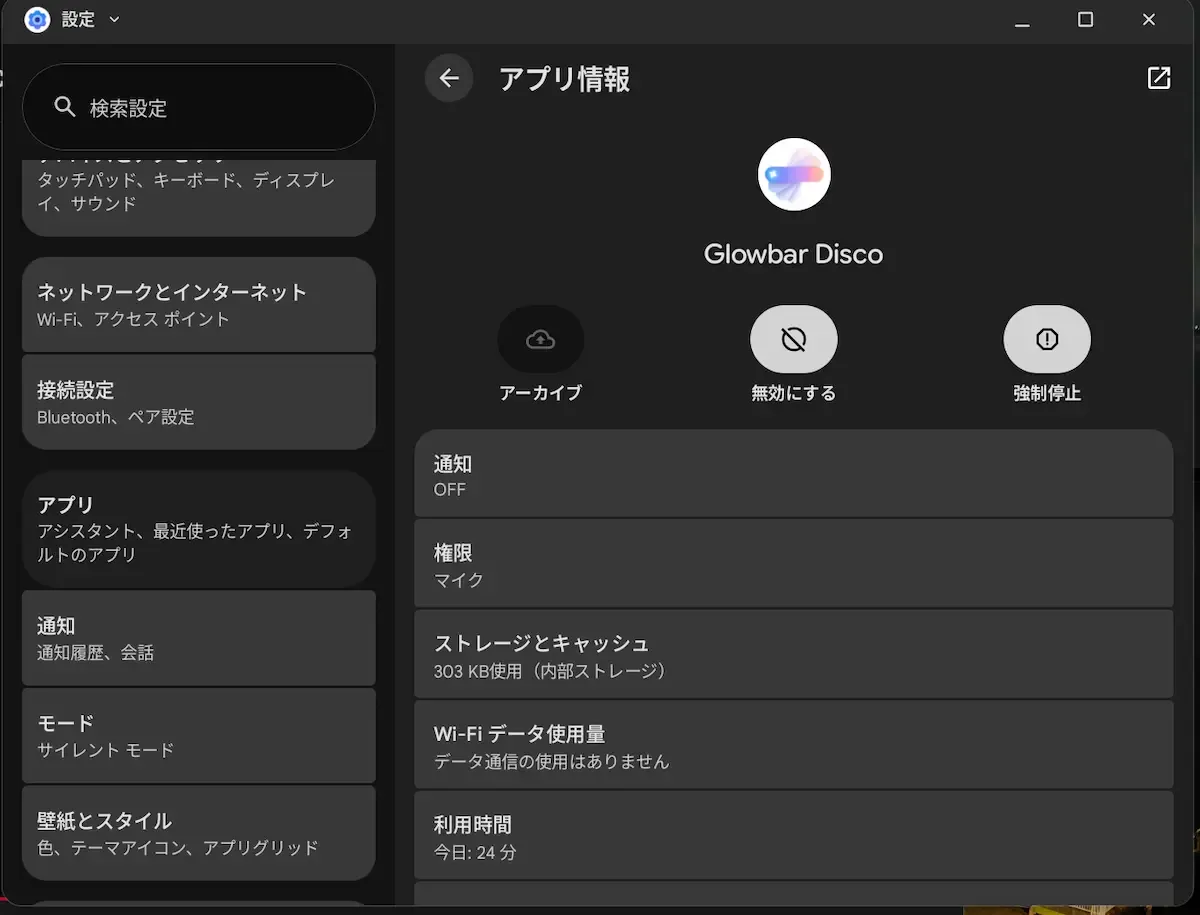
Select the [Open] icon in the top right of the app info screen
-
A notification requesting permission appears only on the first launch; select [Allow]
Features available in Glowbar Disco
Glowbar Disco provides the following features for customizing Glowbar:
-
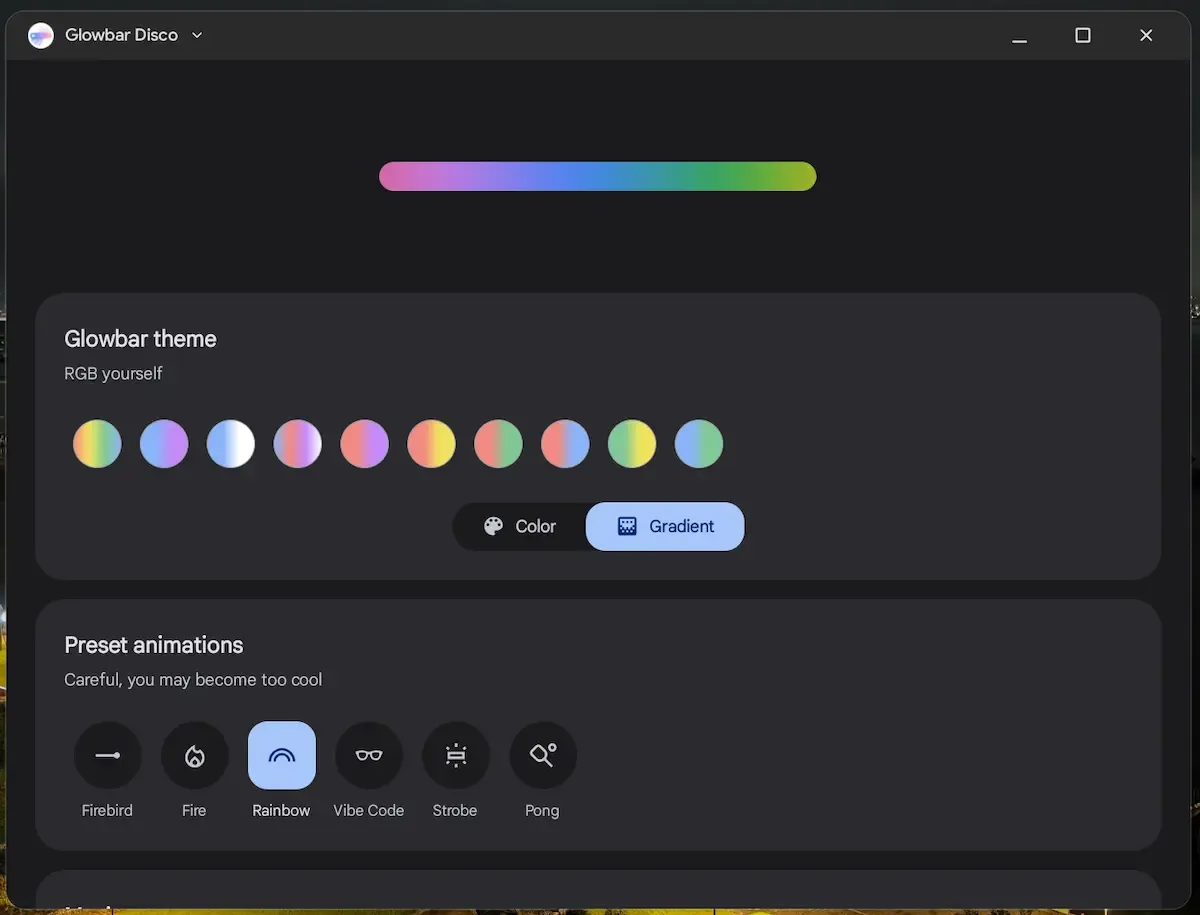
Color selection (Solid color or Gradient)
-
Preset animations (Firebird, Fire, Rainbow, Vibe Code, Strobe, Pong)
-
Music sync (VU Meter, Spectrum, Disco)
In Color selection, you can choose your preferred color from 7 presets and switch between solid color and gradient display. You can also select from 6 dynamic animation effects such as Rainbow and Strobe.
In Music sync, which synchronizes with music, the light pattern changes according to audio currently playing on the device. You can choose from equalizer-like VU Meter, Spectrum, or beat-synced Disco.
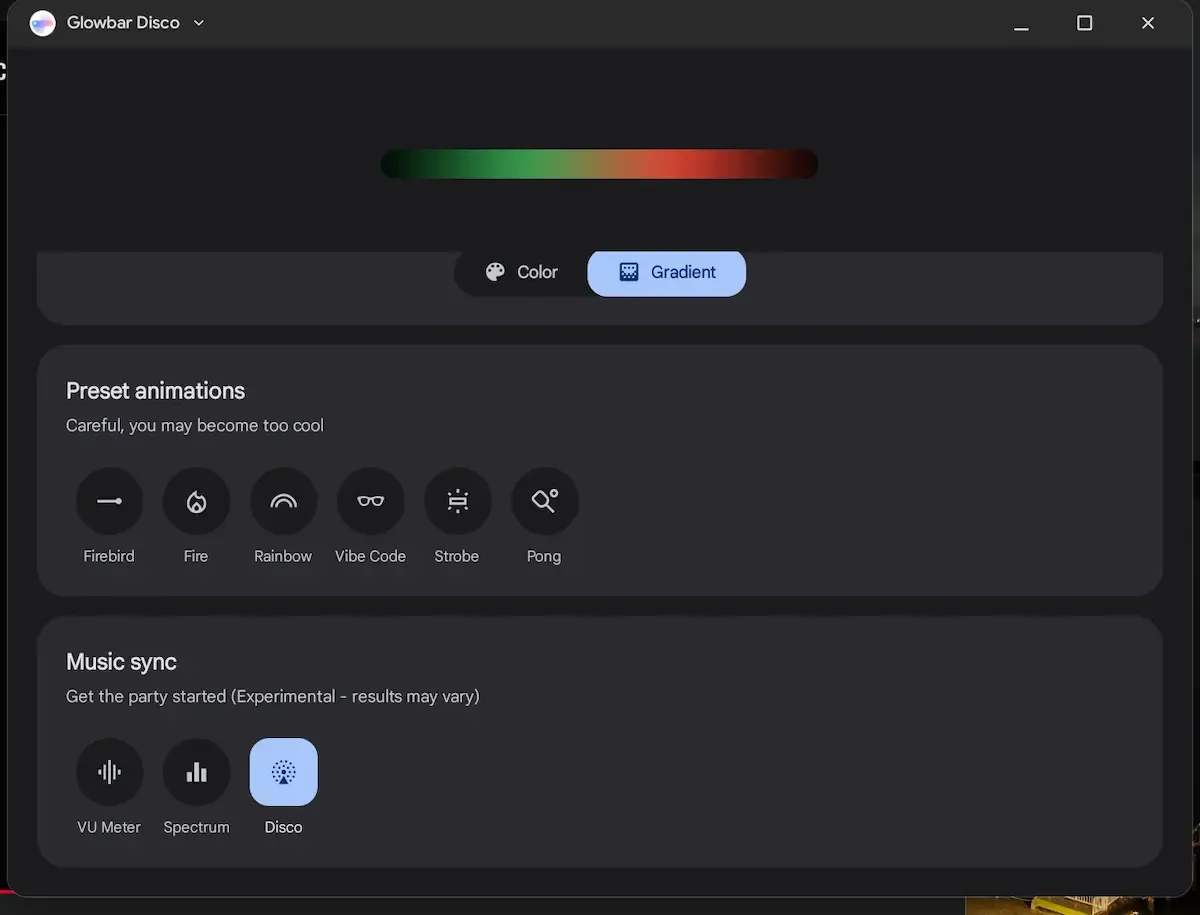
However, custom lighting set by Glowbar Disco is active only while the app is open. Even if the device is powered on, closing the app, minimizing it, or switching virtual desktops returns the light pattern to standard.
Also, this app does not support pinning to the shelf or launcher. If you want to change settings again, you must launch it each time from the system app list in the Settings app.