

When you want to copy text from an image on your Googlebook screen, you don't need to take a screenshot and send it to Gemini. Instead, you can quickly extract characters using the built-in "Circle to Search" feature.
Similar to Chromebooks, Googlebook integrates Circle to Search powered by Google Lens capabilities, allowing you to copy text, search, and translate on-screen content without switching apps.
How to Launch Circle to Search
There are two ways to invoke Circle to Search on a Googlebook:
-
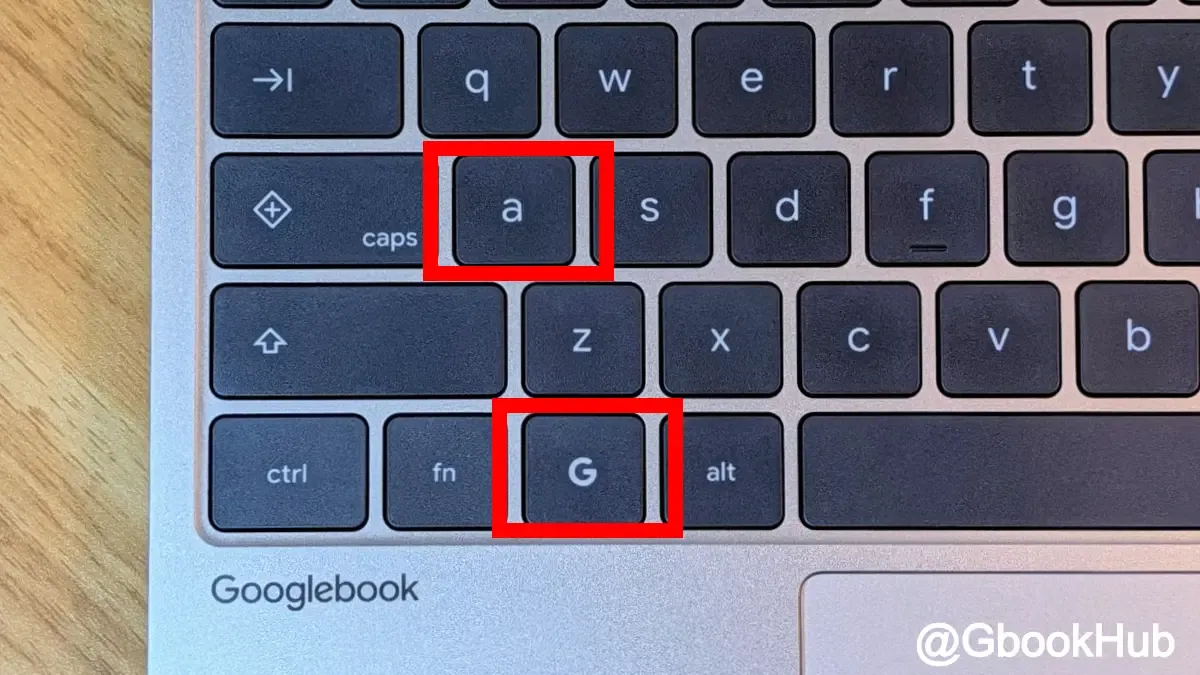
Keyboard shortcut: Press the Action + A keys on your keyboard.
-
Taskbar operation: Press and hold the [Action] icon on the taskbar.
By default, the Action key is assigned to the "G" logo key.
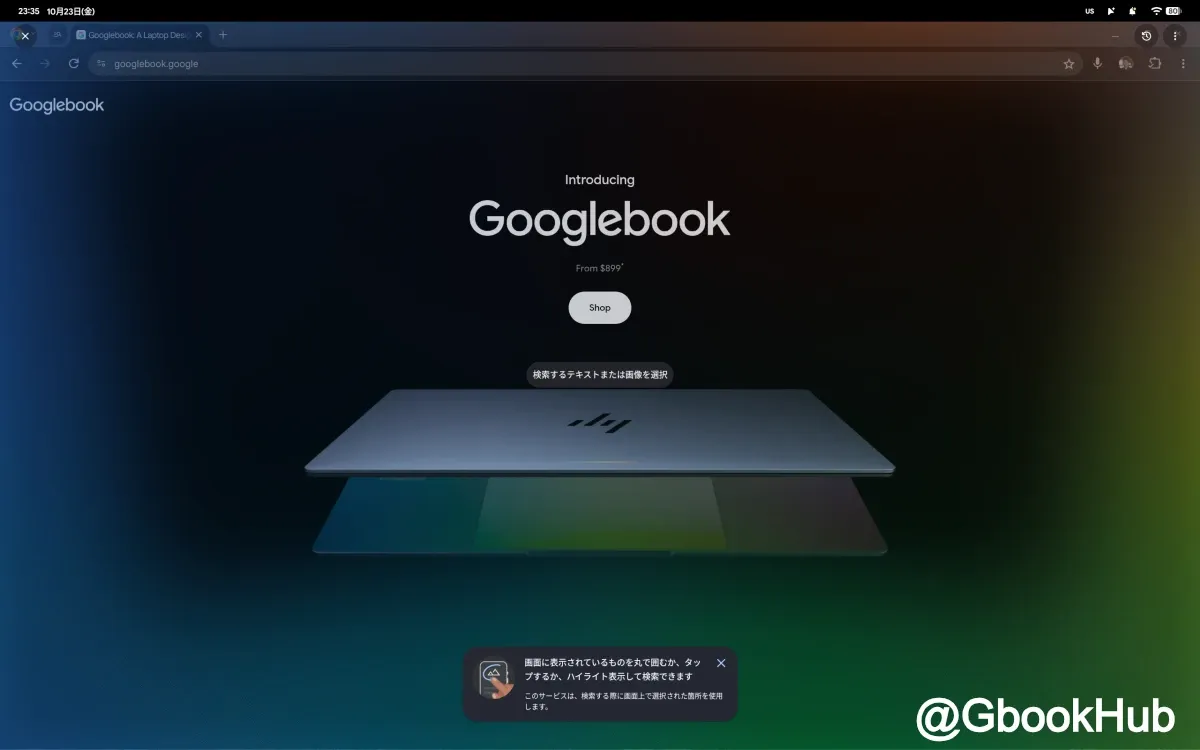
Once Circle to Search is activated, the entire screen switches to an extraction standby state, just like on a smartphone. Beyond selecting text, you can circle any portion of an image to run a Google search directly. It also supports refining search results by adding text to the search bar.
How to Select and Copy Text from Images
Follow these steps to copy text embedded within an image:
-
Display the image or web page containing the text on your screen.
-
Launch Circle to Search using the keyboard shortcut (Action + A) or by pressing and holding the taskbar icon.
-
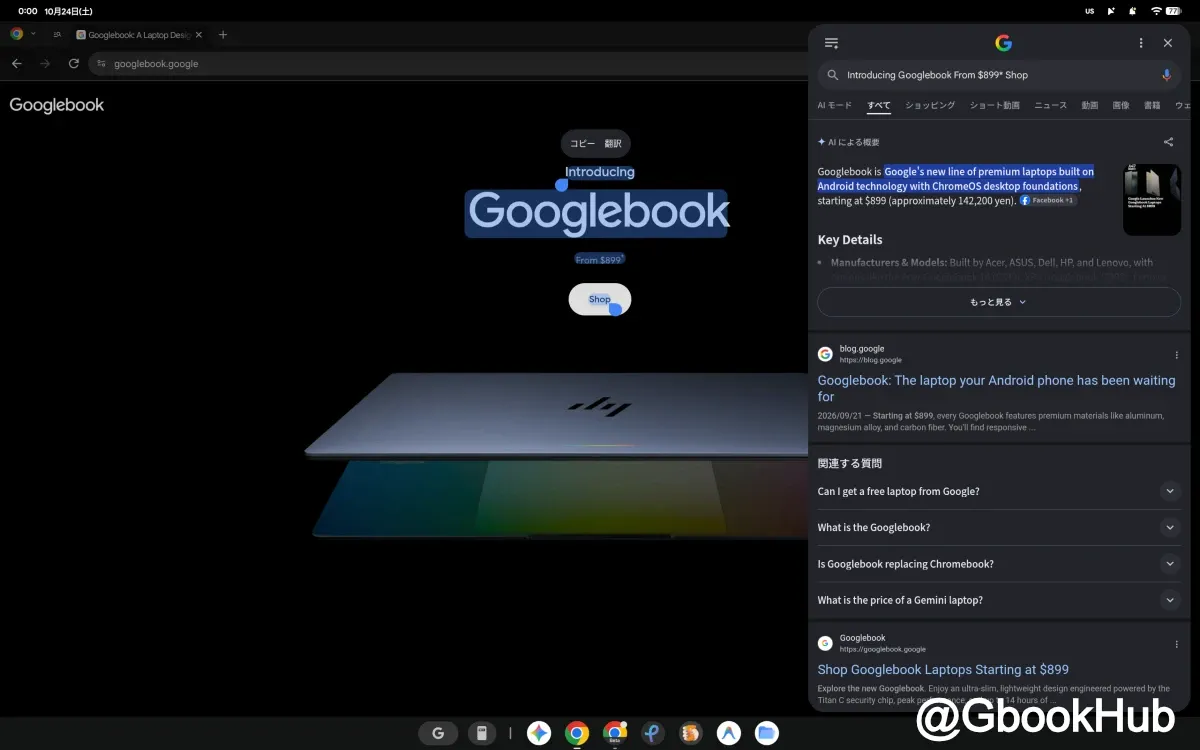
Circle the area of the image that contains the text you want to copy.
-
Choose [Select text] to select the text range, then click [Copy].
Text is generally recognized automatically. If it isn't recognized, click [Select text] on the screen and manually adjust the selection area.
Translating On-Screen Text and the "Translate as You Scroll" Feature
Circle to Search also enables you to translate extracted text or entire screens.
To translate specific text, select [Translate] after choosing the text. To translate the entire screen, launch Circle to Search and select the [Translate] icon in the search bar at the bottom of the screen.
Additionally, a "Translate as you scroll" feature is available when viewing long web pages or documents:
-
Launch Circle to Search.
-
Select [Translate] next to the search bar.
-
Select [Translate as you scroll].
When this setting is enabled, translations apply automatically as you scroll down the page and new text appears. To exit, select [Close] next to the language display.
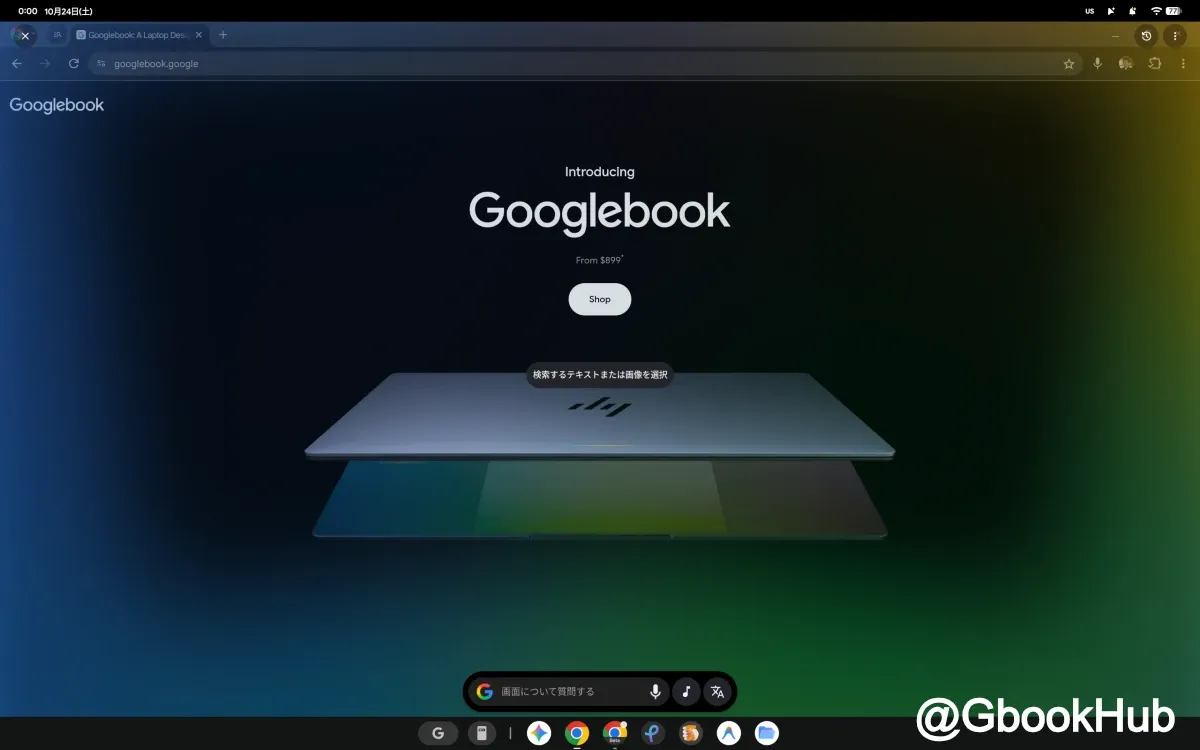
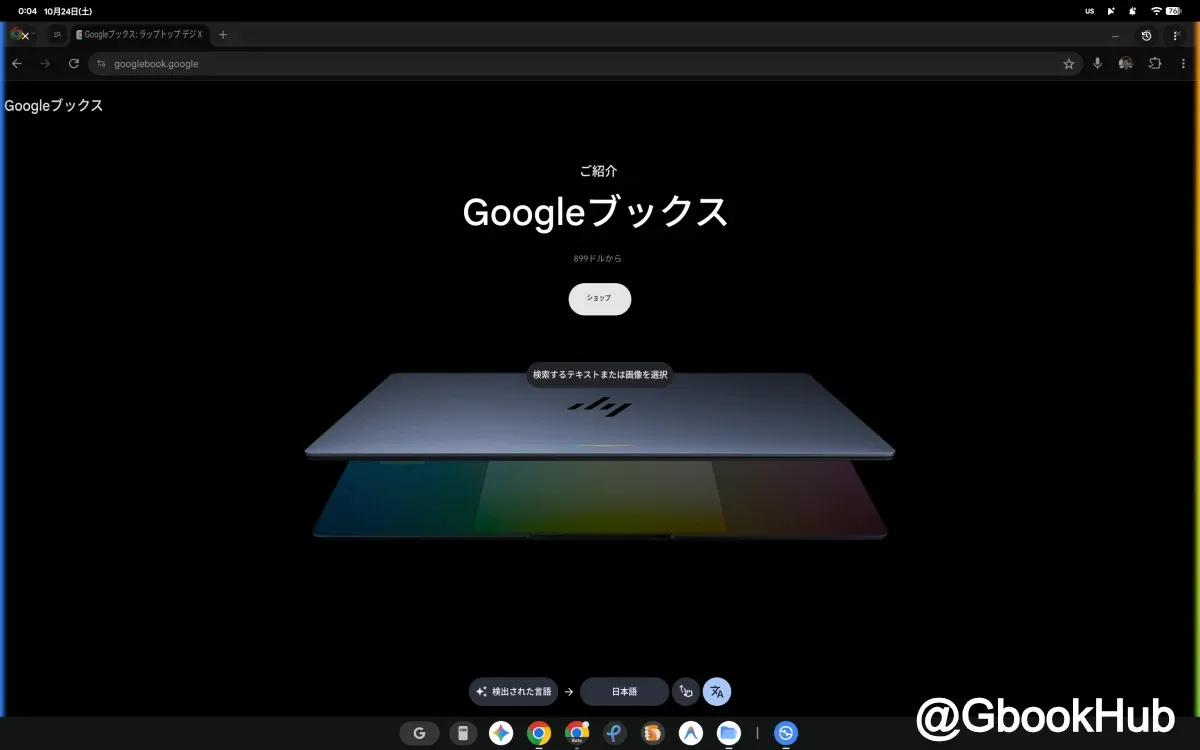
Note that clicking [Translate] in the search bar will always translate the entire screen, which prevents you from translating a specific selected range or using "Translate as you scroll."
Please keep in mind that "Translate as you scroll" is rolling out gradually to select devices, so it may not appear depending on your operating environment.
Choosing the Right Tool for Image Recognition and Text Extraction
When transcribing text from images, conversational AI tools like Gemini are best suited for tasks requiring long-form summaries or complex reasoning.
On the other hand, if you simply want to extract displayed text to paste into a notepad or search bar, or translate foreign languages while preserving on-screen layout, invoking Circle to Search via its shortcut key offers a faster, more direct workflow.