

When using the video conferencing tool "Zoom" on Googlebook, the Android version available from the Google Play Store is an option, but like on Chromebooks, the Android version of Zoom does not support certain features, such as virtual backgrounds or background blur.
Therefore, at present, when participating in online meetings using "Zoom" on Googlebook, instead of installing the Android app via the Google Play Store, it is better to search in your browser and use the web app (PWA) version.
Feature Limitations in the Android App Version of Zoom
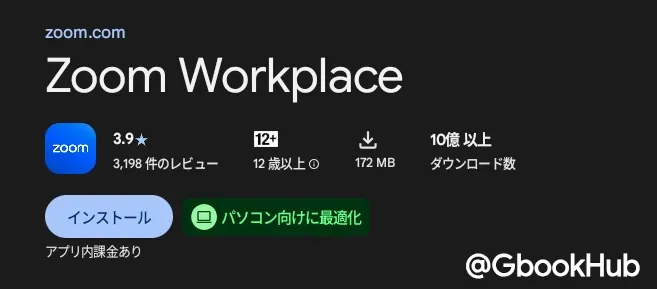
The Zoom app distributed on the Google Play Store for Googlebook claims support for large screens and laptops, with the description explicitly stating "Optimized for PCs".
When using the Zoom Android app on smartphones or tablets, you can configure settings such as backgrounds, filters, and avatars from [Settings] > [Video & Effects].
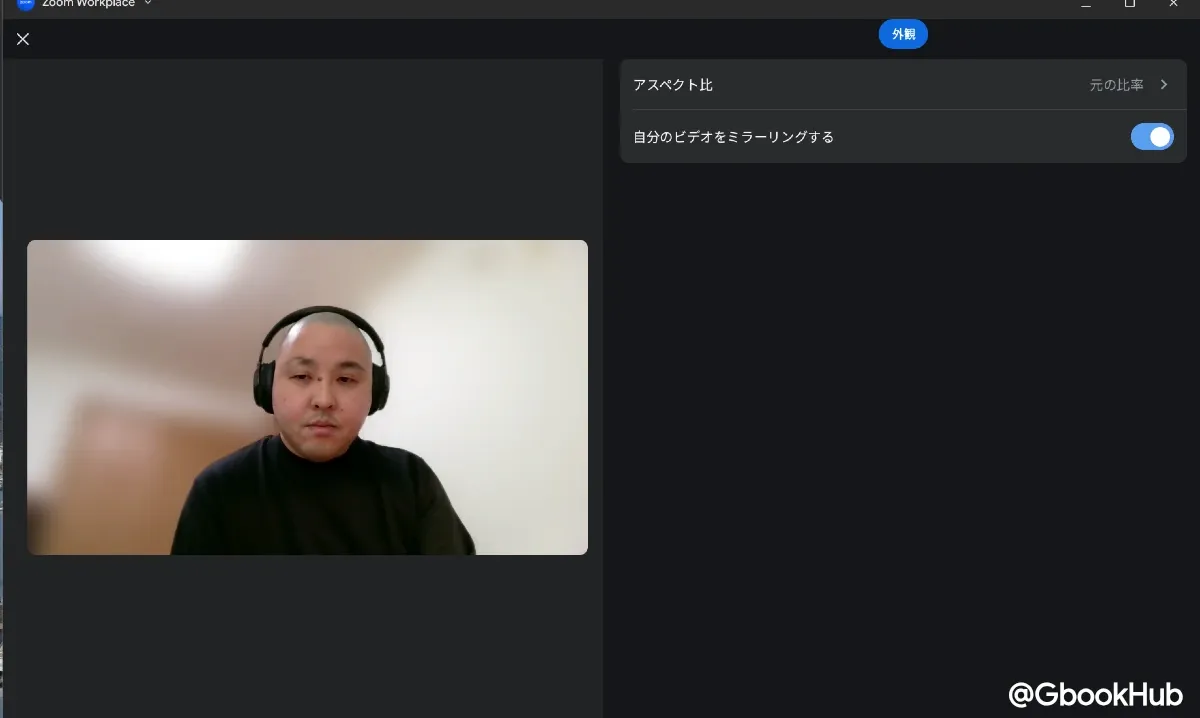
However, on the Android app version for Googlebook, options to change virtual backgrounds or set background blur are not displayed. The available setting items themselves are also fewer compared to the Web version or those for Windows / macOS.
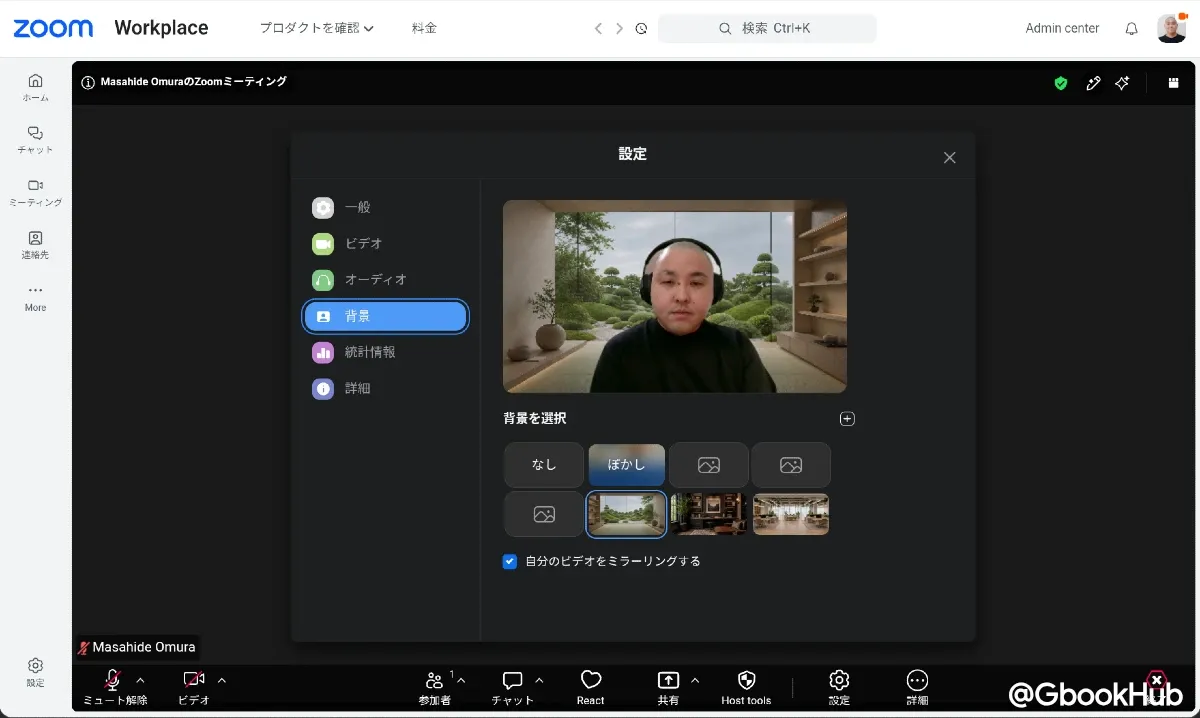
Therefore, if you want to use virtual backgrounds or background blur in Zoom, you need to use the Web app instead of the Android app.
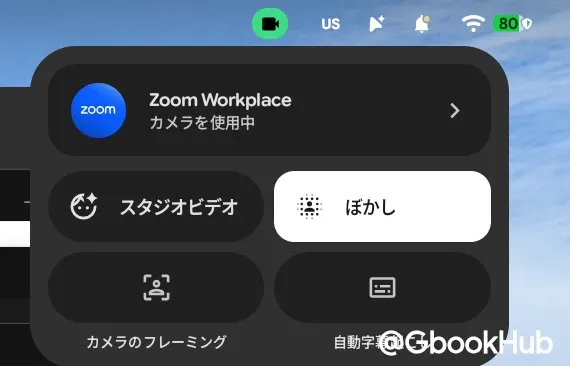
Note that Googlebook OS has a feature that allows you to apply system-wide background blur from the icon at the top right of the screen when the camera is activated. If you simply want to blur the background, this feature is sufficient, but if you want to use virtual backgrounds with images or effects, you must use the Web app version.
How to Install Zoom PWA on Googlebook
To access the Zoom web app (PWA), go to https://app.zoom.us/wc/home or log in to your Zoom account in your browser and select "Web App" from the menu.
After the familiar home screen opens, click the install icon on the right side of the address bar to install it as a web app, then select Install in the pop-up that appears.
This will display the Zoom icon in the Googlebook launcher, allowing you to open the home screen directly in the future.
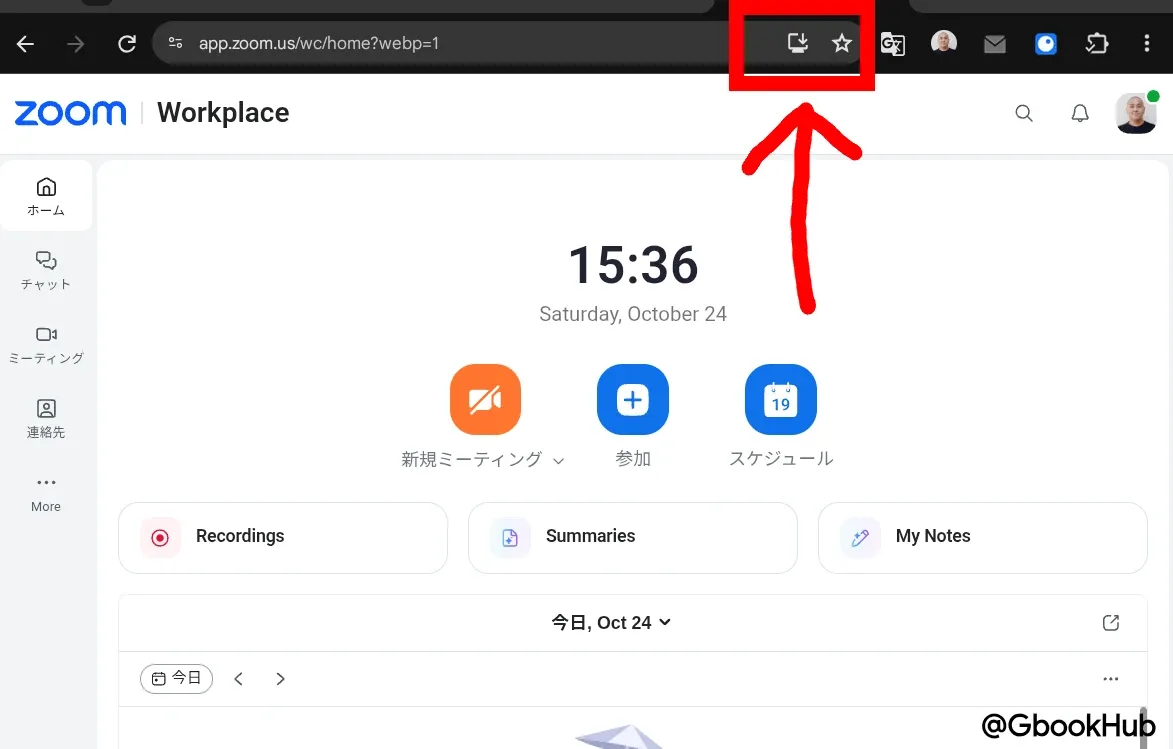
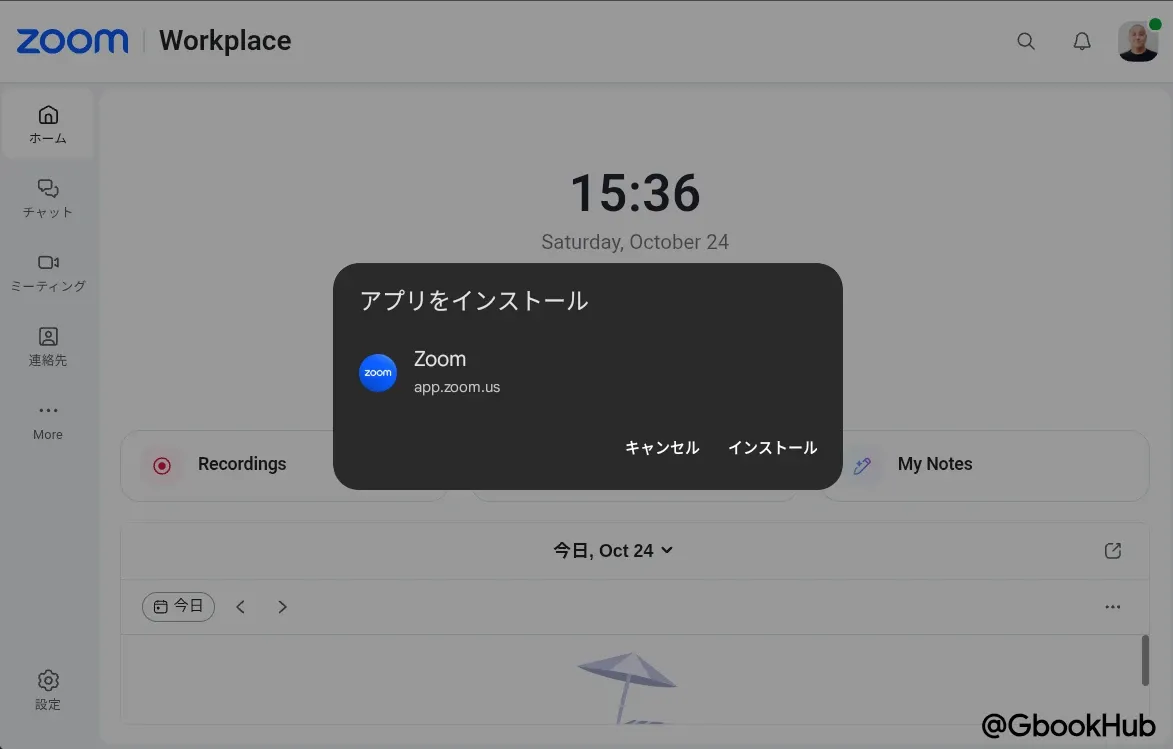
Note that even if the Android Zoom app is already installed, you can install the PWA app directly from the website. Since similar icons will appear side-by-side, it is recommended to uninstall the Android app first.
After that, start or join a meeting as usual, and you can configure background blur and virtual background settings from the meeting settings.