
On October 13, 2026, Google began rolling out the Chrome 155 update for Googlebook.
This update allows users to manually install any web page—including those that don't meet Progressive Web App (PWA) requirements—as a standalone web app running in its own window.
The update targets Chrome version 155.0.8059.79 or later and will be distributed in phases over the coming days.
Manual Installation for Non-PWA Sites
When Googlebook first launched, Chrome only offered an installation option for PWA-compliant sites equipped with an installable Web App Manifest. For pages that did not meet PWA requirements, users were limited to creating standard shortcuts that opened as regular browser tabs.
According to Google, while this was an intentional design choice at launch, feedback from the community prompted them to refine the behavior in Chrome 155, as explained in their support announcement. Moving forward, users can directly install any web page from Chrome and launch it in an independent app window.
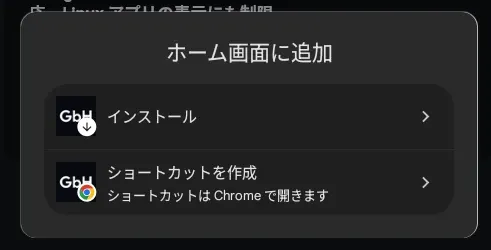
Installed web apps are added to the Googlebook app launcher and can be pinned to the taskbar or home screen. Since these apps run inside Chrome, login states, cookies, site permissions, and installed Chrome extensions are automatically shared with the main browser.
How to Install Any Web Page as an App
Once the update is applied, follow these steps to install any web page as a web app:
-
Open Chrome on your Googlebook.
-
Navigate to the website you wish to install.
-
Click the menu icon [ ⋮ ] in the top-right corner > [Save and share] > [Add to Home screen] (or [Install shortcut]) > [Install]. On supported sites, you can also click the [Install] icon on the right side of the address bar.
-
Follow the on-screen instructions to complete the installation.
Note: For websites where you previously created a shortcut that opens in a browser tab, you will need to delete the old shortcut before re-installing it using the steps above.
Settings Page Updates and How to Check Your Version
In addition to web app installation features, Chrome 155 updates the Chrome Settings page so that it opens in a new tab. This makes it easier to adjust settings while referencing open web pages.
If you prefer not to wait for the automatic update, you can manually update by opening the Google Play Store app on your Googlebook, searching for Chrome, and selecting [Update].
You can verify your current Chrome version using the following steps:
-
Open [Settings] on your Googlebook.
-
Select [Apps] > [See all apps].
-
Locate and select Chrome from the list.
-
Confirm that the version number displayed at the bottom is "155.0.8059.79" or higher.
Alternatively, you can right-click the Chrome app icon and select [App info] to view version details.