
Meridian11 LLC has released "BentoBar," an open-source app that extends the Googlebook status bar, on GitHub.
Much like Bartender or iStat Menus on macOS, BentoBar allows users to place CPU load, calendar events, and various shortcuts directly into the empty space of the status bar. Developed natively on a Googlebook, it operates as a standard Android app without requiring root privileges or ADB setup.
According to Chrome Unboxed, BentoBar was created by Alex Kuscher, Senior Director of Laptops & Tablets at Google. While initial GitHub releases were published under the kuscher account, version 1.7 (released November 3) transitioned publisher naming to Meridian11 LLC, with Google Play listings updated under the same entity as a new app.
Placing System Info and Shortcuts in Status Bar Empty Space
BentoBar displays items in the vacant space adjacent to standard system icons on the status bar. Fonts and text colors are automatically sampled from the system clock to maintain a seamless, native appearance.
Clicking any item on the bar opens a menu complete with real-time charts, detailed data, and action buttons. Users can also right-click items on the status bar to toggle visibility or adjust layout positions.
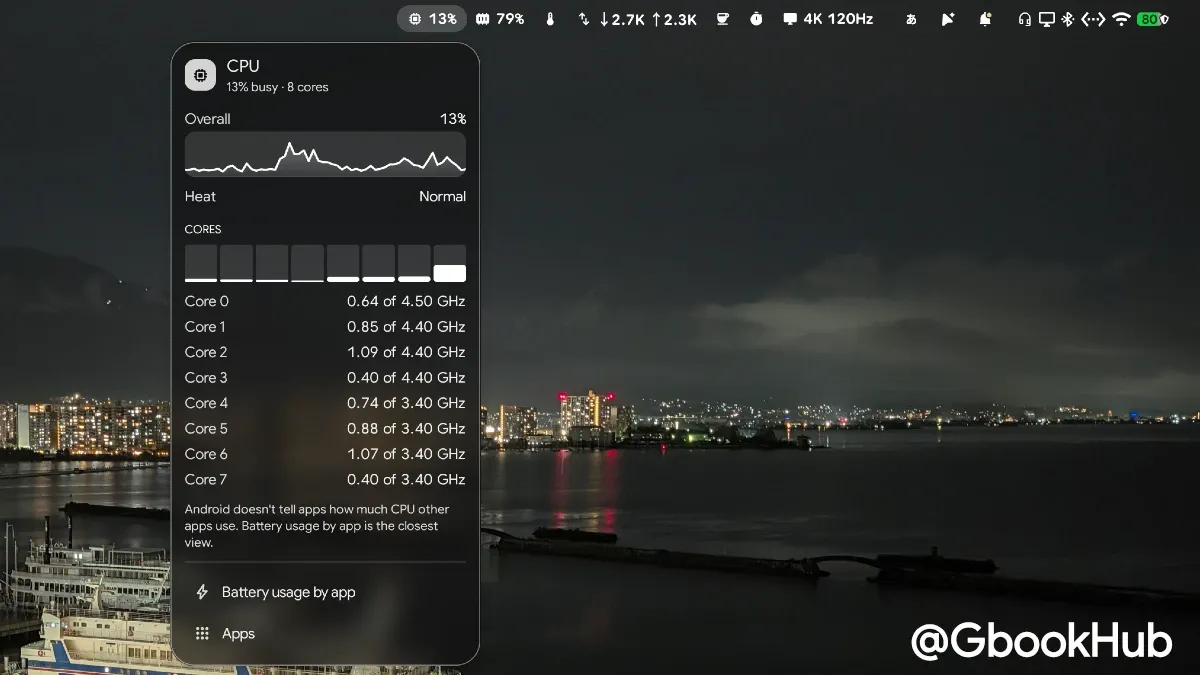
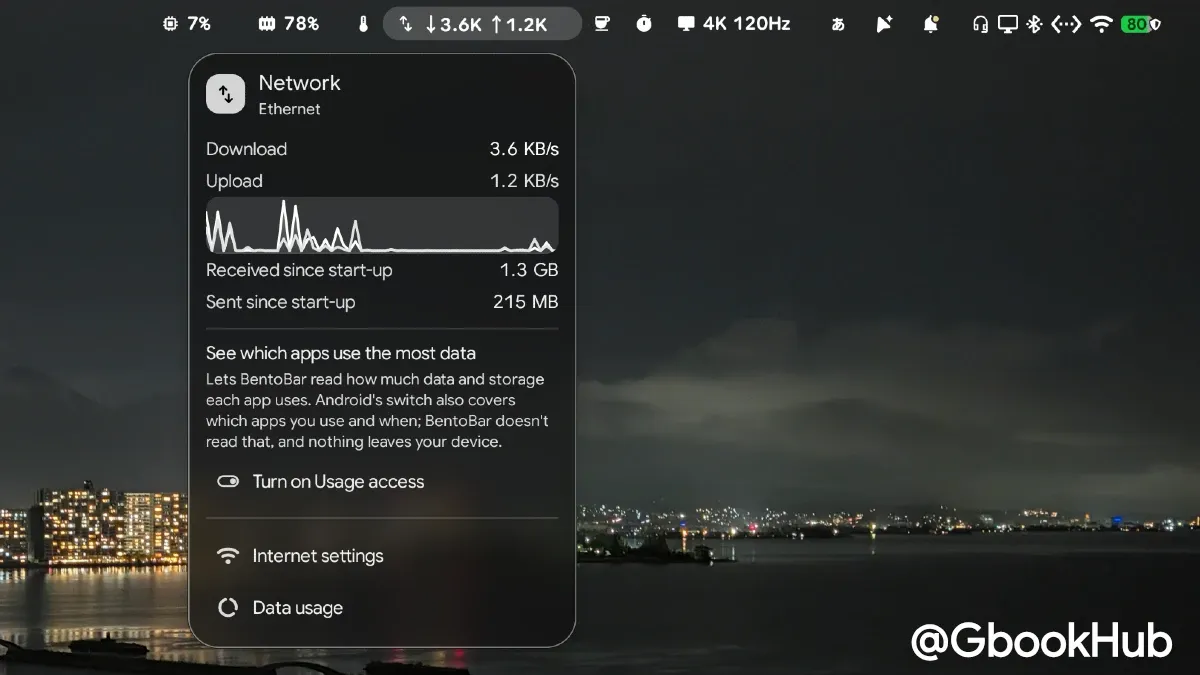
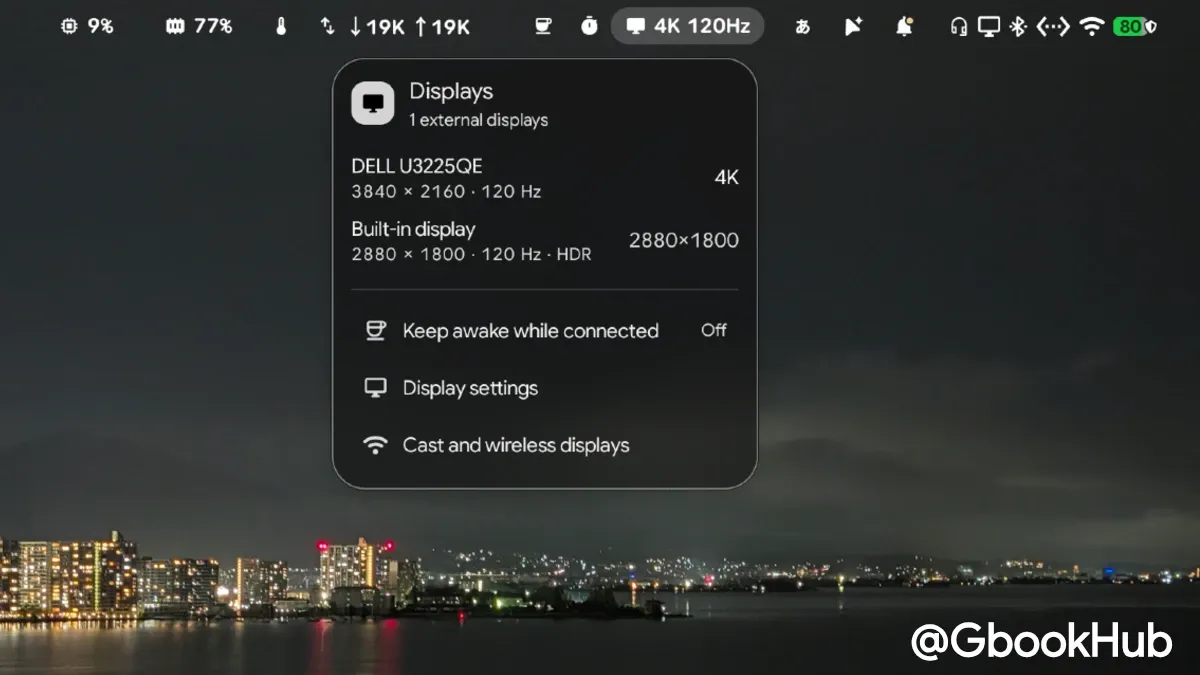
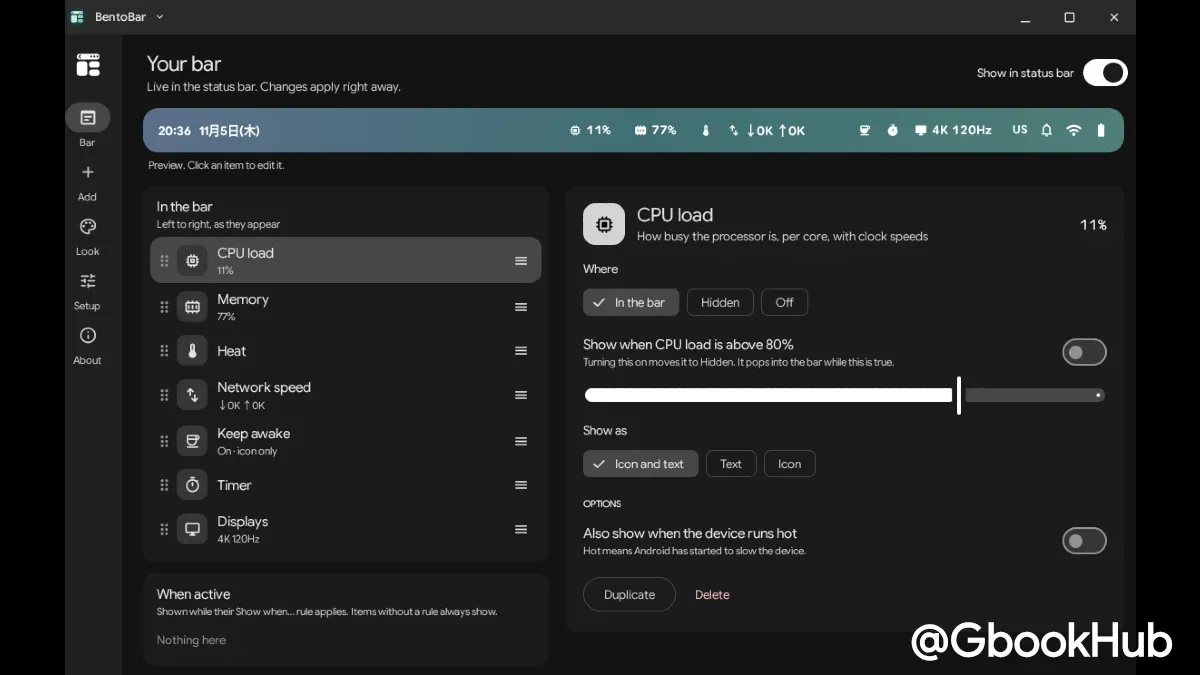
Furthermore, the layout automatically adjusts position as system icons or notification chips fluctuate, automatically hiding during full-screen app usage, screen locks, or screenshot captures.
When using an external monitor alongside the main display, BentoBar icons appear on the main display's status bar but remain hidden on the external monitor. However, if operating exclusively on an external monitor, the icons will display as expected.
Conditional Auto-Expansion and Folding Features
Items that do not need to be constantly visible can be stowed behind a [ < ] button, toggling between expanded and folded views with a single click.
Additionally, BentoBar features a "Show when active" capability that automatically expands items under specified trigger conditions. Users can set rules such as CPU load exceeding 80%, upcoming meeting start times, active timers, approaching rain or snow, deteriorating air quality or UV index, and sudden fluctuations in tracked exchange rates or US stocks.
Available Items and Detailed Menus
The main items available for addition to the status bar or menus include:
-
CPU Load: Percentage display of processor utilization. The menu provides real-time charts, per-core load, clock speeds, and GPU load (calculated from core idle times).
-
Network Speed: Download and upload rates. The menu displays real-time charts, usage totals since boot, connection details, and top 5 data-consuming apps (requires Usage Access permission).
-
Memory & Storage: RAM in use and available capacity, free storage space, and cleanup shortcuts.
-
Battery Details: Power draw (W), percentage (%), temperature, time to full charge, charge/discharge power, voltage, current, battery health, and charge cycle count.
-
Heat State: Thermal throttling warnings and battery temperature.
-
Date & Calendar: Date display, monthly calendar view, and today's schedule (complete with "Join" and "Directions" buttons; tasks synced from external apps like Todoist are automatically excluded).
-
Next Meeting: Event title and countdown timer.
-
Clock & World Clock: Seconds display, 24-hour format, and alternate city times. The menu features a "Plan a time" slider to compare time zone differences across cities.
-
Timer & Countdown: Countdown timer, stopwatch, Pomodoro timer, and target-date countdowns.
-
Keep Awake: Screen sleep prevention toggle (15 minutes to indefinite).
-
Sound: Volume display via numerical value or slider, alongside media controls.
-
Now Playing: Currently playing track title, artwork display, and playback controls.
-
Device Batteries: Lowest remaining battery percentage among connected devices (mouse, keyboard, stylus, or controller) displayed when low.
-
External Displays: Connected monitor resolution and refresh rate (e.g., 4K 60Hz), plus HDR status.
-
Clipboard: Session copy history, pinned snippets, and direct insertion into text fields.
-
Shortcuts & Tools: Quick execution of screenshots, screen lock, overview, all apps, and settings.
-
Online Services (Optional): Weather, air quality, and UV index via Open-Meteo; European Central Bank exchange rates via Frankfurter; flight tracking via AirLabs; and US stock quotes via Finnhub.
Keyboard Navigation and Quick Settings Tiles
In addition to mouse interactions, BentoBar supports keyboard and shortcut controls. Scrolling the mouse wheel over the Sound item adjusts volume, while scrolling over the Timer item adds minutes.
Using the "BentoBar menu" app launcher entry enables full menu operation via keyboard alone: arrow keys navigate items, Enter opens menus, and Escape closes them. Users can also map custom keyboard shortcuts (e.g., Action + T) via Googlebook system settings ("Action + /" › "Customize").
For system-level integration, BentoBar adds three Quick Settings tiles to the top panel: "BentoBar off," "Keep awake," and "25-minute timer." Even when BentoBar is toggled off, active timers continue to display as native Android 17 Live Update chips on the status bar.
Resource usage remains minimal: even with CPU load and network speed refreshing every second, resource consumption sits at approximately 0.5% of a single CPU core, with background processing pausing when the screen turns off.
Installation Steps and Unlocking Restricted Settings
BentoBar is designed for Googlebook OS (Android 17), installed by downloading the APK file from GitHub Releases.
Because it renders elements directly onto the status bar, users must enable Android's Accessibility service during initial setup. Furthermore, for APKs downloaded externally, Android security features enforce "Restricted setting," requiring manual clearance as follows:
-
After completing BentoBar installation, open the app and accept the Accessibility service prompt.
-
When the "Restricted setting" warning dialog appears, select [OK].
-
Open [App info] within BentoBar's initial setup screen.
-
From the top-right [ ⋮ ] menu in App info, select [Allow restricted settings] and confirm with your device PIN.
-
Return to Android [Settings] > [Accessibility] and switch BentoBar on.
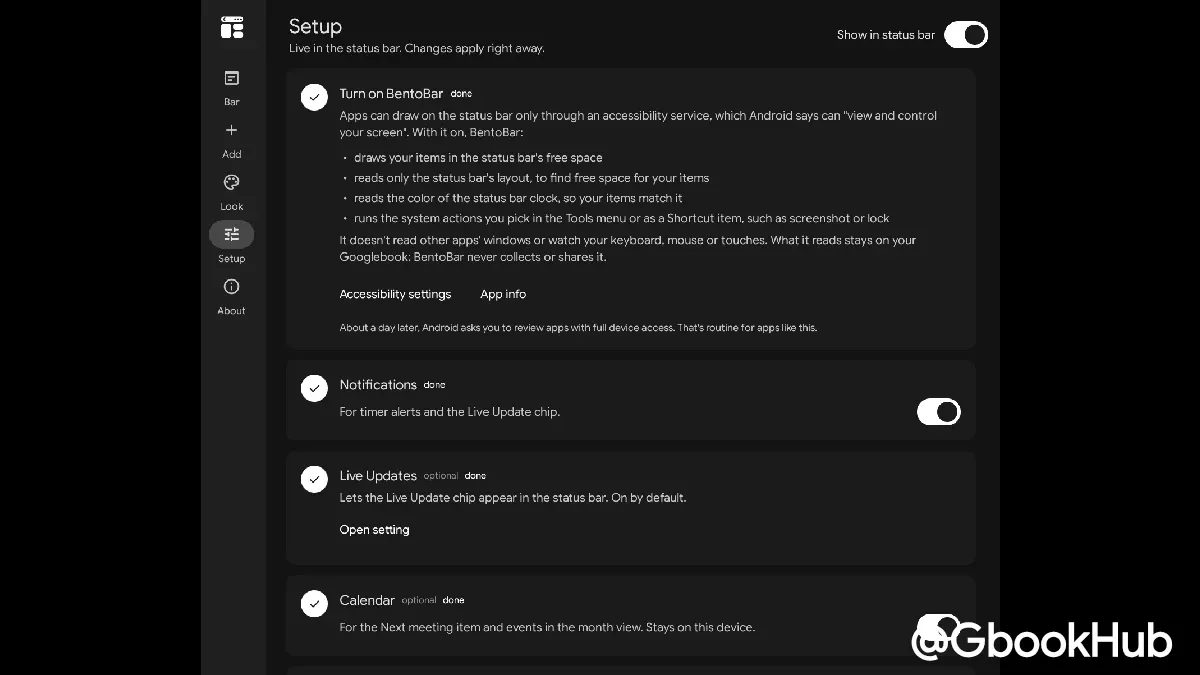
Optional permissions—such as "Send notifications" for timer alerts, "Calendar access" for meeting displays, and "Approximate location" for local weather—can be granted as needed.
Due to Android specifications for accessibility services, a system dialog reading "Review app with full device access" will appear approximately 24 hours after installation, but usage can continue normally.
To update the application, installing a newer BentoBar.apk over an existing installation preserves user layouts.
Purpose of Accessibility Service and Privacy Protection
On Android, third-party apps require an Accessibility service to draw elements over the status bar region, triggering standard warnings regarding screen viewing and control during installation.
However, BentoBar restricts access strictly to necessary functions: detecting window appearances, disappearances, or movements to hide the bar during full-screen apps or shade expansions; reading status bar layout dimensions to identify available space; and sampling clock color tones. It does not inspect contents of other app windows nor monitor keyboard, mouse, or touch inputs.
For online items (Weather, Air Quality, Exchange Rates, Flights, Stocks), communication connects strictly to official API services. Location coordinates are rounded to approximately 10 km intervals and held solely in volatile memory. Layout configurations and retrieved data are never transmitted to the developer, and the app contains zero ads or tracking code.
Note that if Android 17's "Advanced Protection" feature is enabled, non-assistive accessibility services are uniformly restricted, disabling BentoBar status bar rendering. In such cases, Live Update chips and Quick Settings tiles remain functional.